How to Build a Multi-Step Form That Converts
Key Takeaways
- Multi-step forms can increase conversion rates by 86% compared to single-page forms of equivalent length
- Progress indicators reduce form abandonment by giving users a clear sense of completion and momentum
- Strategic step sequencing—starting with easy, low-commitment questions—builds psychological investment that carries through to completion
- Conditional logic allows personalized form paths that collect only relevant information, improving both user experience and data quality
Long forms are intimidating. When users see dozens of fields on a single page, many abandon before even starting. Multi-step forms solve this problem by breaking complex data collection into manageable chunks that feel achievable.
In this comprehensive guide, we’ll show you how to design and build multi-step forms using Pixelform that maximize completion rates while collecting the information you need.

Why Multi-Step Forms Work Better
The psychology behind multi-step forms is well-documented. By applying principles of progressive disclosure and commitment escalation, you create a more engaging user experience.
The Research Behind Multi-Step Effectiveness
Conversion Impact: According to Venture Harbour’s analysis of over 650,000 form submissions, multi-step forms converted an average of 86% better than equivalent single-page forms.
Psychological Principles at Work:
- Reduced Cognitive Load: Fewer decisions per screen means less mental fatigue
- Commitment Escalation: After completing initial steps, users feel invested
- Progress Motivation: Visible progress creates momentum toward completion
- Focused Attention: One topic per screen reduces distraction
When to Use Multi-Step Forms
Multi-step forms are ideal for:
- Lead generation and qualification (10+ questions)
- Application processes (job, loan, insurance)
- Registration and onboarding flows
- Quote request or estimation tools
- Surveys and assessments
- Order forms with multiple product options
Consider single-page forms when:
- You only need basic contact information
- The form has fewer than 5 fields
- Users are highly motivated to complete
- The process needs to feel very quick
Step 1: Plan Your Form Structure
Strategic planning is crucial for multi-step form success.
Mapping Your Information Requirements
Before building, list all information you need to collect. Then organize it into logical groupings:
Example: Insurance Quote Form
Step 1 - Basic Info (Easy Start)
- ZIP code
- Type of coverage needed
- Primary reason for seeking coverage
Step 2 - Personal Details
- Full name
- Date of birth
- Contact information
Step 3 - Coverage Specifics
- Current coverage status
- Coverage amount needed
- Start date preference
Step 4 - Additional Factors
- Health history (if applicable)
- Lifestyle questions
- Preferences and priorities
Step 5 - Review and Submit
- Summary of entered information
- Terms acceptance
- Submit
Step Sequencing Strategy
Research from Typeform and others suggests optimal ordering:
Start Easy: Begin with simple, non-threatening questions
- ZIP code instead of full address
- Multiple choice over open text
- Low-commitment selections
Build Investment: Gradually increase commitment
- After basic info, ask for contact details
- Complex questions come after simple ones
- More personal questions later in the flow
End Strong: Make the final steps feel achievable
- Review and confirmation
- Clear completion indication
- Simple final action

Step 2: Build Your Multi-Step Form in Pixelform
Let’s create a high-converting multi-step form step by step.
Creating the Form Structure
- Log into Pixelform and create a new form
- Choose “Multi-Step Form” template or start blank
- Define your steps in the form builder
Configuring Individual Steps
For Each Step:
- Add a clear step title/heading
- Include only 3-5 fields maximum per step
- Group related questions logically
- Maintain visual consistency
Step Configuration Options:
- Step title (displayed to users)
- Internal step name (for your reference)
- Validation rules per step
- Conditional visibility settings
Adding Fields to Steps
Best Practices by Step:
Opening Step:
- Use engaging, easy questions
- Multiple choice or select options work well
- Avoid text inputs for first step if possible
- Make it feel like a conversation
Middle Steps:
- Group related fields together
- Use appropriate input types (email, phone, number)
- Include helpful placeholder text
- Add field descriptions where helpful
Final Step:
- Summary or review of key entries
- Required acknowledgments (terms, privacy)
- Clear submit button with action-oriented text
- Optional additional notes field
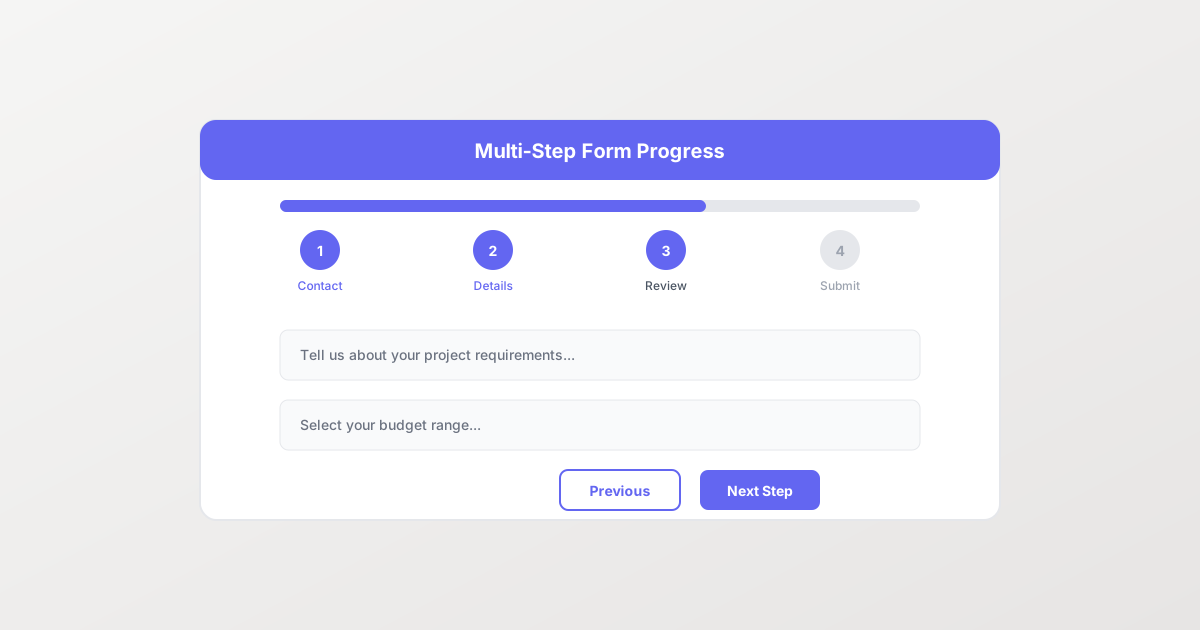
Progress Indicators
Always show users where they are in the process:
Progress Bar:
- Visual fill showing percentage complete
- Works well for longer forms (5+ steps)
- Creates sense of momentum
Step Numbers:
- “Step 2 of 5” indicator
- Clear and precise
- Good for forms with defined stages
Breadcrumbs/Tabs:
- Shows all step names
- Allows navigation back (if permitted)
- Good for non-linear forms
According to Nielsen Norman Group research, progress indicators reduce perceived effort and increase completion rates by setting clear expectations.
Step 3: Implement Conditional Logic
Conditional logic creates personalized form experiences by showing or hiding steps and fields based on user responses.
Types of Conditional Logic
Show/Hide Fields:
- If “Yes” is selected, show additional questions
- If “Other” is chosen, show text input
- If quantity > 10, show bulk discount options
Skip Steps:
- If “Individual” is selected, skip business questions
- If “Not applicable,” move to next relevant section
- Fast-track qualified leads to quote step
Branch Paths:
- Product A path vs. Product B path
- Residential vs. Commercial flows
- New customer vs. Returning customer
Implementing Conditional Logic in Pixelform
- Select the field that triggers the condition
- Define the condition (equals, contains, greater than, etc.)
- Choose the action (show, hide, skip to step)
- Test thoroughly with different scenarios
Logic Best Practices
Keep It Simple:
- Avoid overly complex logic chains
- Test every possible path
- Document your logic for future reference
User Experience:
- Animate transitions smoothly
- Provide context when steps are skipped
- Never trap users in dead ends
Data Integrity:
- Clear hidden field values to prevent stale data
- Validate that required fields are visible before enforcing
- Handle edge cases gracefully
Step 4: Optimize User Experience
Small UX improvements compound into significant conversion gains.
Navigation and Controls
Back Buttons:
- Always allow users to go back
- Preserve entered data when navigating
- Position consistently across steps
Progress Saving:
- Auto-save responses as users progress
- Allow returning to incomplete forms
- Display save confirmation
Keyboard Navigation:
- Enable Tab key navigation
- Support Enter to proceed
- Ensure accessibility standards
Field Design Within Steps
Visual Hierarchy:
- Clear step titles
- Logical field ordering
- Adequate spacing between fields
Input Optimization:
- Appropriate input types (email, tel, number)
- Input masks for formatted data (phone, SSN)
- Autofocus on first field
Validation Timing:
- Validate on blur (after leaving field)
- Show inline errors, not alerts
- Prevent progress until step is valid
Mobile Considerations
Per Google research, 53% of mobile users abandon forms that take longer than 3 seconds to load:
Mobile Optimization:
- One field per row on mobile
- Large, tappable form controls
- Keyboard-appropriate input types
- Sticky navigation buttons
Touch Interactions:
- Swipe gestures for navigation (optional)
- Large tap targets (minimum 44x44 pixels)
- No hover-dependent interactions
Step 5: Advanced Conversion Techniques
Take your multi-step form to the next level with these proven strategies.
Micro-Copy Optimization
The words you use matter:
Step Titles:
- Descriptive and encouraging
- “Tell us about yourself” vs. “Personal Information”
- Conversational tone builds rapport
Button Text:
- Action-oriented: “Continue,” “Next Step,” “See Results”
- Avoid: “Submit,” “Next,” generic text
- Final step: “Complete Request,” “Get Your Quote”
Progress Copy:
- “Almost there!” on penultimate step
- “One more step” builds momentum
- “Review your information” for final confirmation
Social Proof Integration
Add trust elements throughout:
- Testimonials between steps
- Customer count (“Join 10,000+ customers”)
- Security badges near sensitive fields
- Trust seals at checkout steps
Gamification Elements
Light gamification can increase engagement:
- Completion percentage display
- “Great job!” micro-interactions
- Step completion checkmarks
- Milestone acknowledgments
Research from Yu-kai Chou’s gamification framework shows that progress bars and completion indicators tap into the “Development & Accomplishment” core drive that motivates continued engagement.

Common Multi-Step Form Mistakes
Avoid these pitfalls that hurt conversions:
Too Many Steps
Problem: Forms with 10+ steps exhaust users Solution: Combine related short steps; aim for 3-7 steps
No Progress Indicator
Problem: Users don’t know how long the process will take Solution: Always show clear progress (bar, steps, percentage)
Asking Too Much Per Step
Problem: Steps with 8+ fields feel overwhelming Solution: Maximum 3-5 fields per step
Poor Mobile Experience
Problem: Multi-step forms often break on mobile Solution: Test extensively on multiple devices
No Data Persistence
Problem: Losing progress frustrates users Solution: Save data at each step; allow resume
Confusing Navigation
Problem: Users can’t go back or get lost Solution: Consistent, clear navigation controls
Measuring Multi-Step Form Performance
Track these metrics for optimization:
Step-Level Analytics
Per-Step Metrics:
- Views per step
- Drop-off rate per step
- Time spent per step
- Error rate per step
Identifying Problem Steps:
- High drop-off indicates friction
- Long completion time suggests confusion
- High error rates mean validation issues
Overall Form Metrics
Completion Rate: Started vs. Completed (benchmark: 15-25% for complex forms)
Average Completion Time: Track against improvements
Field Abandonment: Which specific fields cause abandonment?
A/B Testing Ideas
Test these elements systematically:
- Number of steps (fewer vs. more)
- Progress indicator style
- Step ordering
- Field grouping
- Button text
- First step content
Real-World Examples
Lead Qualification Form
Steps:
- “What are you looking for?” (service selection)
- “Tell us about your project” (scope, timeline)
- “How can we reach you?” (contact info)
Results: 300% more qualified leads than single-page form
Insurance Quote Form
Steps:
- ZIP code and coverage type
- Personal information
- Coverage history
- Health questions
- Review and submit
Results: 67% completion rate vs. 23% for previous form
Event Registration Form
Steps:
- Select event and ticket type
- Attendee information
- Dietary/accessibility needs
- Payment information
- Confirmation
Results: 45% reduction in support tickets about registration
FAQ
How many steps should my multi-step form have?
The optimal number is typically 3-7 steps, depending on total information needed. Research suggests 3-5 steps work best for most use cases. Each step should feel like a manageable chunk—if a step feels overwhelming, split it. If steps feel trivially short, consider combining them.
Should I allow users to navigate back to previous steps?
Yes, always allow backward navigation. Users often need to review or change previous answers. Preserve all entered data when navigating back, and make the back button clearly visible. Restricting navigation creates frustration and increases abandonment rates.
How do I prevent drop-off between steps?
Minimize drop-off by starting with easy questions, showing clear progress, and saving responses automatically. Analyze which steps have highest abandonment and simplify them. Add encouraging micro-copy, ensure fast load times between steps, and test on mobile devices.
Can multi-step forms work for mobile users?
Absolutely—when designed correctly. Use single-column layouts, large tap targets, and appropriate keyboard types. Keep steps short, ensure smooth transitions, and test extensively on various devices. Mobile-optimized multi-step forms often outperform single-page alternatives.
How do I handle required fields across multiple steps?
Validate required fields before allowing progression to the next step. Show inline error messages rather than alerts. Consider making fewer fields required and gathering additional information post-submission. Always allow users to return and complete skipped optional fields.
Ready to boost your form conversions with multi-step design? Build your multi-step form with Pixelform and start converting more visitors today.