Multi-Step Form Tutorial: Build Forms That Convert 86% Better
Key Takeaways
- Multi-step forms convert an average of 86% better than equivalent single-page forms
- Progress indicators alone can increase completion rates by 43%
- Each step should contain 3-5 fields maximum for optimal user experience
- Mobile cart abandonment reaches 85%, making multi-step optimization critical for mobile users
- Real companies have seen conversion increases from 51% to over 700% by implementing multi-step forms
When users see a long form with dozens of fields, many abandon before typing a single character. Multi-step forms solve this psychological barrier by breaking complex data collection into manageable chunks that feel achievable.
This tutorial will guide you through creating high-converting multi-step forms, from understanding the psychology behind why they work to implementing advanced features like conditional branching and mobile optimization.
Why Multi-Step Forms Outperform Single-Page Forms
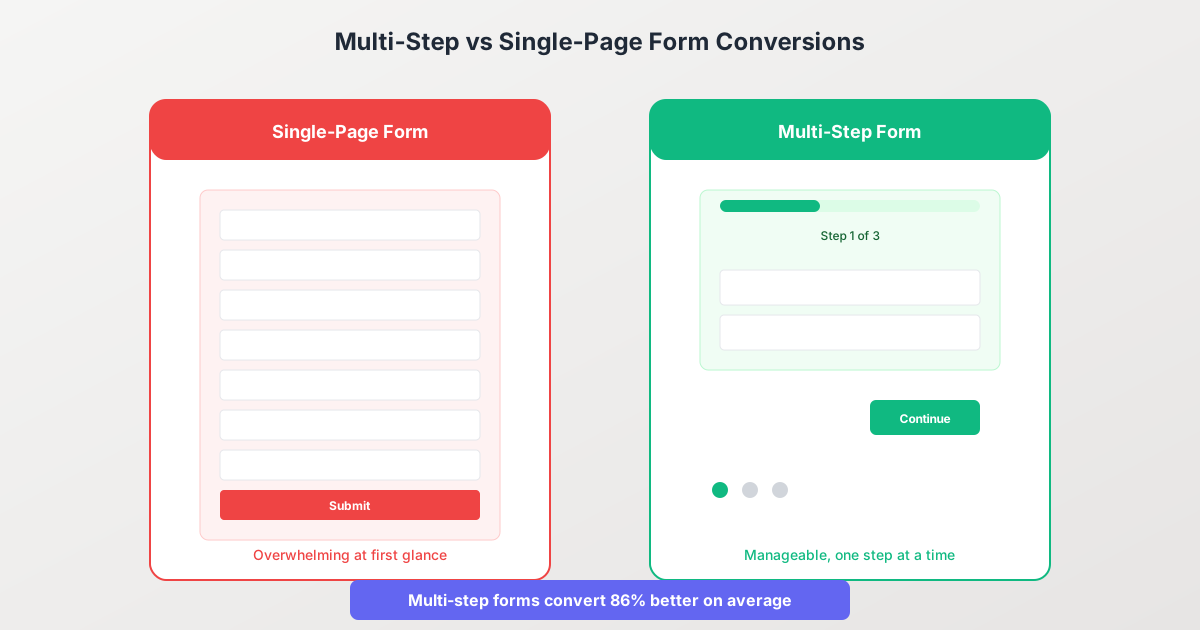
The data is compelling. According to analysis from Venture Harbour covering over 650,000 form submissions, multi-step forms convert an average of 86% better than equivalent single-page forms.
But why? The answer lies in human psychology.
The Psychology Behind Multi-Step Success
1. Reduced Cognitive Load
When users see all form fields at once, they must mentally process the entire task before starting. Multi-step forms show only a few fields at a time, making each screen feel quick and easy to complete.
2. The Sunk Cost Effect
After completing the first step or two, users have invested time and effort. Abandoning feels like wasting that investment, so they continue to completion.
3. Progress Motivation
Seeing a progress bar move from 25% to 50% to 75% creates momentum. Each step completion triggers a small sense of accomplishment that propels users forward.
4. Commitment Escalation
Starting with easy, low-commitment questions (like selecting from multiple choice options) builds psychological commitment before asking for more personal or complex information.
When to Use Multi-Step Forms
Multi-step forms are ideal for:
- Lead generation forms with 10+ qualification questions
- Application processes (job, loan, insurance, enrollment)
- Quote request tools requiring detailed specifications
- Registration and onboarding flows
- Surveys and assessments
- Order forms with multiple product options or configurations
Stick with single-page forms when:
- You need only basic contact information (name, email, message)
- The form has fewer than 5 fields
- Users are highly motivated to complete (e.g., checkout for wanted item)
- Speed and simplicity are paramount
Step 1: Plan Your Form Structure
Strategic planning is the foundation of an effective multi-step form.
Inventory Your Questions
Start by listing every piece of information you need to collect. For each item, ask:
- Is this absolutely necessary?
- Can we get this information elsewhere (database lookup, later follow-up)?
- What’s the cognitive effort required to answer?
Group Into Logical Steps
Organize questions into themed groups:
Example: Insurance Quote Form
| Step | Theme | Questions |
|---|---|---|
| 1 | Basic Info | ZIP code, coverage type, reason for shopping |
| 2 | Personal Details | Name, date of birth, contact info |
| 3 | Coverage Specs | Current coverage, amount needed, start date |
| 4 | Additional Factors | Health history, lifestyle questions |
| 5 | Review & Submit | Summary, terms acceptance, submit |
Apply the Progressive Commitment Strategy
Research consistently shows that form field ordering matters significantly:
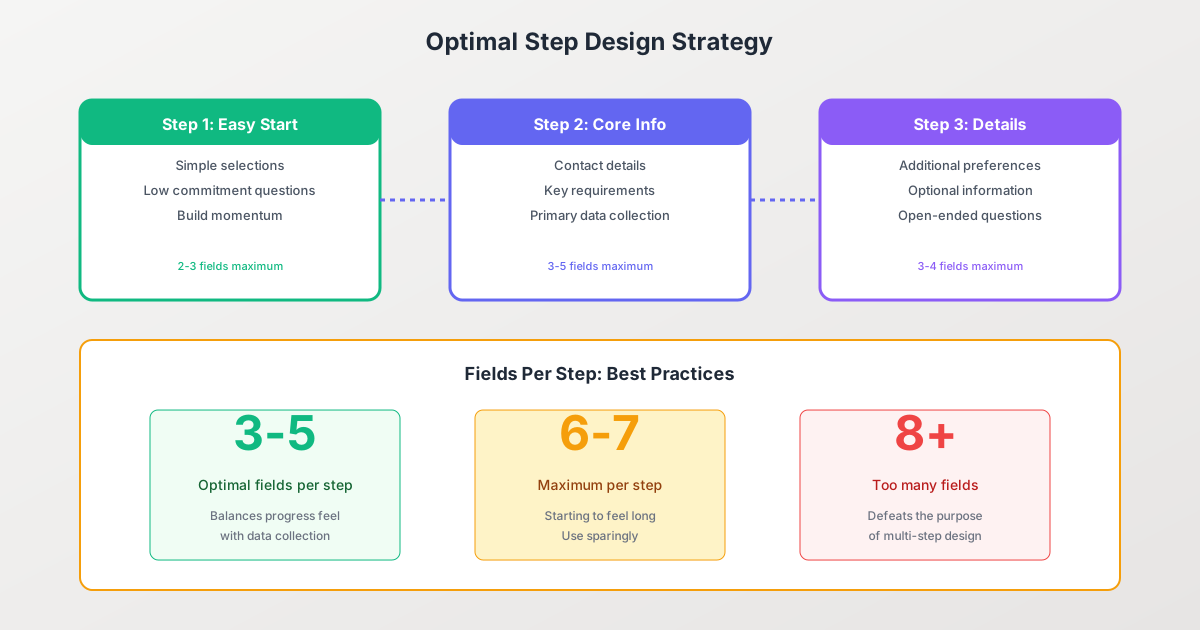
Start Easy (Step 1)
- Simple multiple-choice questions
- Low-commitment selections
- Questions that don’t require lookups or thought
Build Investment (Steps 2-3)
- Contact information after initial engagement
- Core data collection
- Slightly more complex questions
Complex/Sensitive Last (Steps 4+)
- Open-ended questions
- Sensitive information
- Review and final commitment
Step 2: Design Effective Progress Indicators
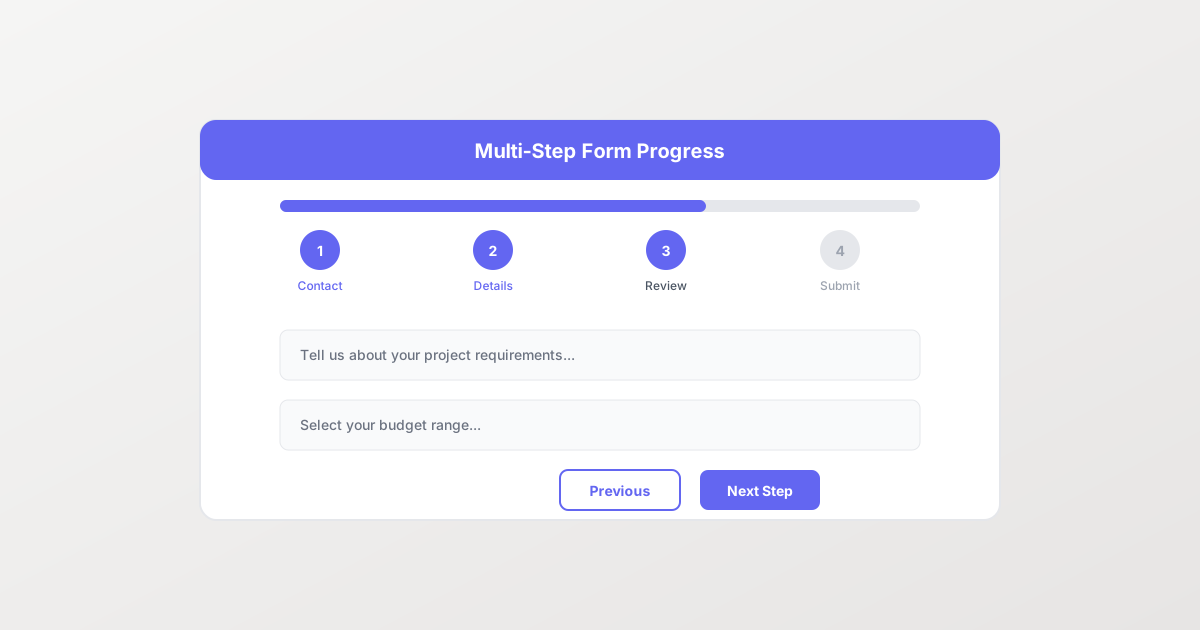
Progress indicators are critical. Research shows they can increase completion rates by up to 43% by reducing perceived effort and creating momentum.
Types of Progress Indicators
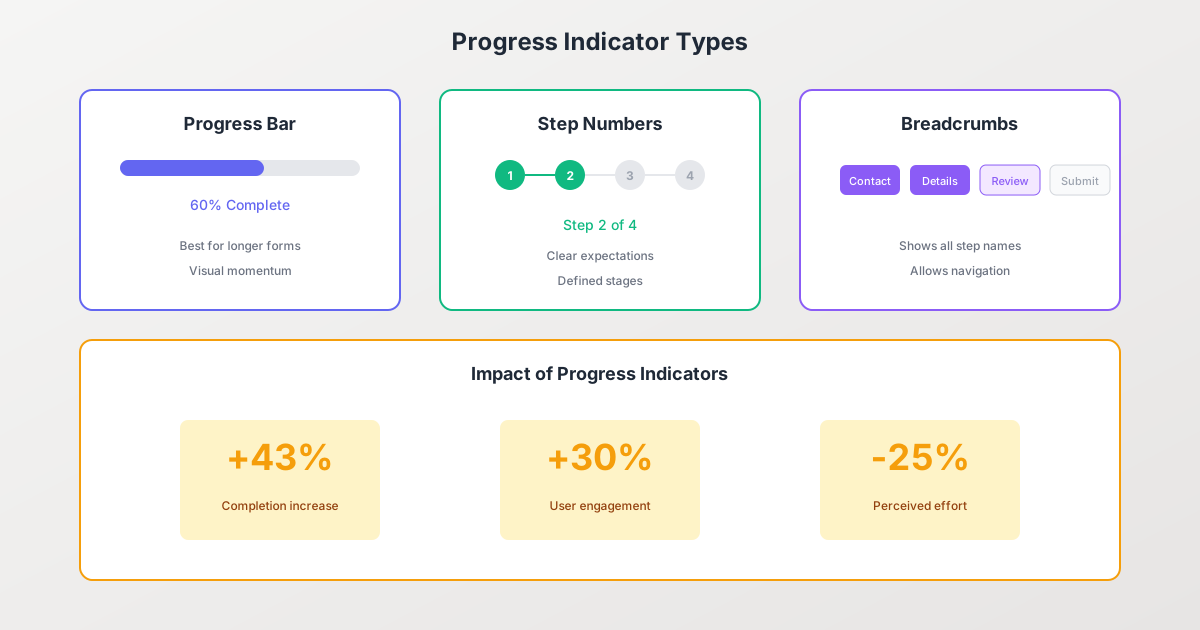
Progress Bar
A visual bar that fills as users advance through the form.
Best for: Longer forms (5+ steps) where percentage feels motivating Consideration: Ensure percentages are accurate; don’t show 90% on step 2 of 5
Step Numbers
Shows “Step 2 of 5” or similar explicit step count.
Best for: Forms with clearly defined stages Advantage: Sets precise expectations upfront
Breadcrumb Navigation
Displays all step names, highlighting the current step.
Best for: Forms where users might want to navigate back Advantage: Shows the full journey and allows direct navigation
Completion Checklist
Shows steps as checkable items that get marked complete.
Best for: Non-linear forms where steps can be completed in any order Advantage: Gamification effect of checking items off
Progress Indicator Best Practices
- Always visible: Place at the top of each step, visible without scrolling
- Accurate representation: If step 3 of 5, show approximately 60%, not 33%
- Consider time estimates: “Step 2 of 4 (about 2 minutes left)” adds helpful context
- Mobile-friendly: Ensure indicators work on small screens
- Encourage completion: Add micro-copy like “Almost there!” on later steps
Step 3: Build Your Form Steps
Now let’s construct the actual form content.
First Step: The Critical Entry Point
Your first step determines whether users continue or abandon. Optimize aggressively:
Content recommendations:
- 2-3 easy questions maximum
- Multiple choice or single select (no text input)
- Engaging, non-threatening questions
- No personal information yet
Example first step questions:
- “What brings you here today?” (selection)
- “Which category interests you most?” (selection)
- “What’s your timeline?” (selection)
Design elements:
- Clear, friendly headline
- Progress indicator showing “Step 1 of X”
- Single prominent “Continue” button
- No back button on step 1 (there’s nowhere to go back to)
Middle Steps: Core Data Collection
Middle steps carry the bulk of your data collection while maintaining momentum.
Content structure:
- 3-5 fields per step (research shows this is optimal)
- Group related fields logically
- Mix question types for variety
- Include validation and helpful error messages
Navigation:
- “Back” and “Continue” buttons
- Both should be clearly visible
- “Back” should preserve entered data
Engagement tactics:
- Update progress indicator
- Optional: Show encouraging messages (“Great progress!”)
- Maintain visual consistency with step 1
Final Step: Review and Submit
The last step should feel like the finish line, not another hurdle.
Components:
- Summary of key entered information
- Option to edit previous responses
- Required acknowledgments (terms, privacy)
- Clear, action-oriented submit button
- Progress indicator showing near-completion
Submit button text options:
- “Submit Application”
- “Get Your Quote”
- “Complete Registration”
- “Send Request”
Avoid generic “Submit” text; use action-oriented language that tells users exactly what happens next.
Step 4: Implement Conditional Logic
Conditional logic (skip logic, branching) creates personalized form paths based on user responses. This is where multi-step forms truly shine.
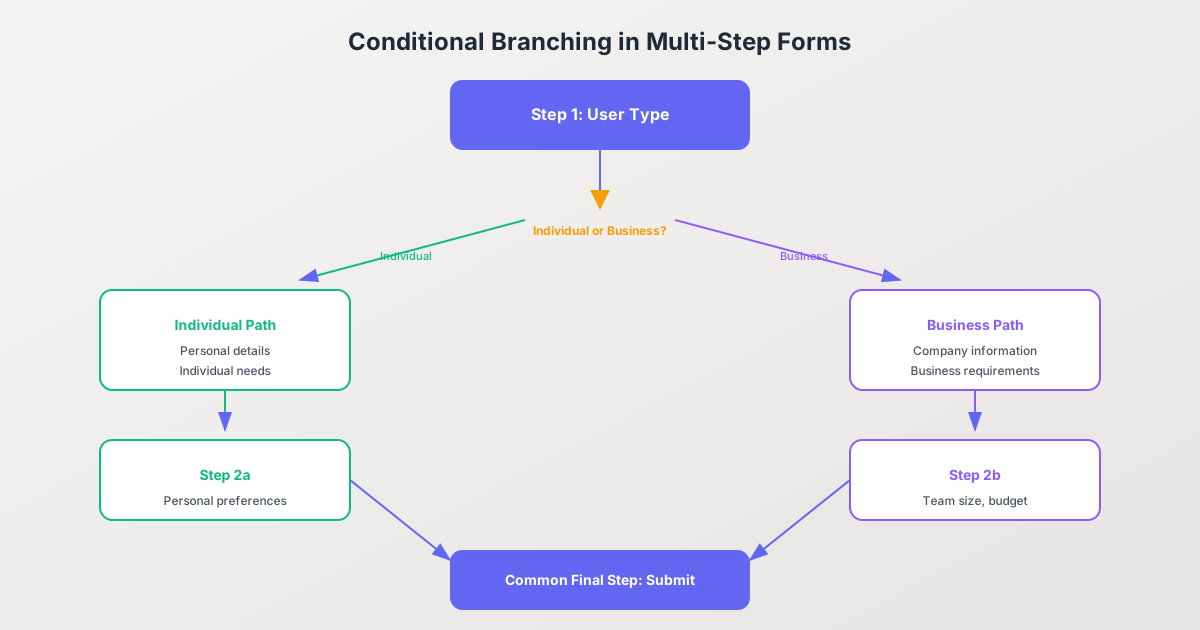
Common Conditional Logic Patterns
Show/Hide Fields Within a Step
If user selects "Other" for industry:
  Show text input for "Please specify"

If quantity selected > 10:
  Show bulk discount options
Skip Entire Steps
If user selects "Individual":
  Skip to Personal Details step

If user selects "Business":
  Show Company Information step first
Branch to Different Paths
If satisfaction rating = 4-5 stars:
  Path A: Request testimonial/referral

If satisfaction rating = 1-3 stars:
  Path B: Gather improvement feedback
Benefits of Conditional Logic
- Shorter perceived length: Users only see relevant questions
- Better data quality: Questions are contextually appropriate
- Higher completion rates: Less irrelevant content means less friction
- Personalized experience: Forms feel tailored to each user
Implementation Tips
- Map all paths first: Before building, diagram every possible flow
- Test every branch: Ensure no dead ends exist
- Keep logic simple: Complex nested conditions create bugs
- Document your logic: Future you will thank present you
Step 5: Optimize for Mobile
With mobile cart abandonment reaching 85% according to recent data, mobile optimization isn’t optional, it’s essential.
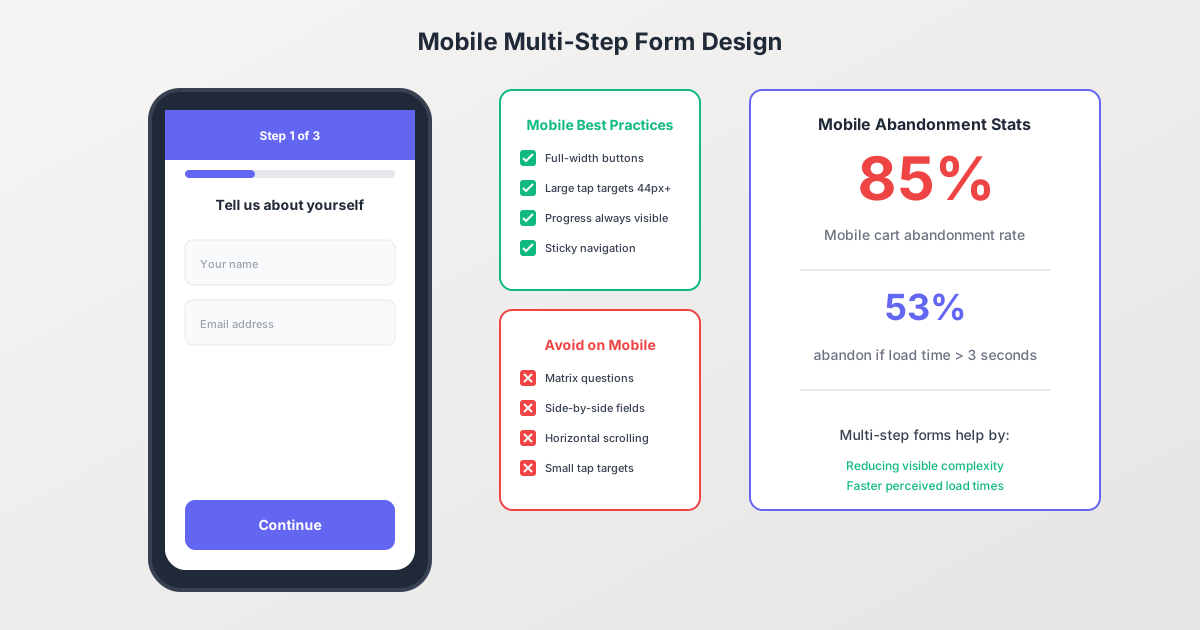
Mobile Design Requirements
Layout:
- Single column layout exclusively
- Full-width form fields
- Progress indicator visible without scrolling
- Sticky navigation buttons at bottom
Touch Targets:
- Minimum 44x44 pixels for all tappable elements
- Adequate spacing between options (prevent mis-taps)
- Large, prominent Continue/Back buttons
Input Optimization:
- Use correct input types (email, tel, number)
- Enable native mobile keyboards
- Consider select dropdowns over text input where possible
- Enable autocomplete attributes
Performance:
- Fast load times (53% abandon if > 3 seconds)
- Lazy load later steps
- Minimize images and animations
What to Avoid on Mobile
- Matrix/grid questions (convert to individual questions)
- Side-by-side field layouts
- Horizontal scrolling of any kind
- Small tap targets
- Non-native form controls
Step 6: Add Navigation and Data Persistence
Two critical features separate good multi-step forms from great ones.
Back Navigation
Always allow users to navigate backward. This builds trust and reduces anxiety.
Implementation requirements:
- Preserve all entered data when going back
- Clear visual back button (but less prominent than Continue)
- Position consistently across all steps
- Consider keyboard navigation (Tab, Enter)
Data Persistence (Save Progress)
Nothing frustrates users more than losing progress. Implement auto-save functionality.
Options for saving progress:
- Session storage: Save to browser, lost when tab closes
- Local storage: Persists in browser between sessions
- Server-side: Save to database, accessible from any device
- Email continuation: Send link to resume form later
Best practices:
- Auto-save after each step completion
- Auto-save on field blur for long forms
- Show save confirmation (“Progress saved”)
- For long forms, offer explicit “Save and Continue Later” option
Step 7: Track and Optimize Performance
Multi-step forms provide rich analytics opportunities.
Key Metrics to Track
Step-Level Metrics:
- Views per step
- Drop-off rate per step
- Time spent per step
- Error rate per step
Field-Level Metrics:
- Abandonment by specific field
- Error frequency per field
- Time to complete per field
Overall Metrics:
- Start-to-completion rate
- Average completion time
- Mobile vs. desktop performance
- Traffic source conversion comparison
Identifying and Fixing Problem Areas
High drop-off at a specific step?
- Reduce fields on that step
- Simplify question wording
- Review if questions feel intrusive
- Check mobile rendering
Long completion time on a step?
- Questions may be confusing
- Fields may require lookups (ask users to prepare in advance)
- Technical issues (slow validation)
High error rates?
- Review validation rules (too strict?)
- Improve error messages
- Add input formatting help
- Check mobile keyboard types
Real-World Case Studies
The results speak for themselves.
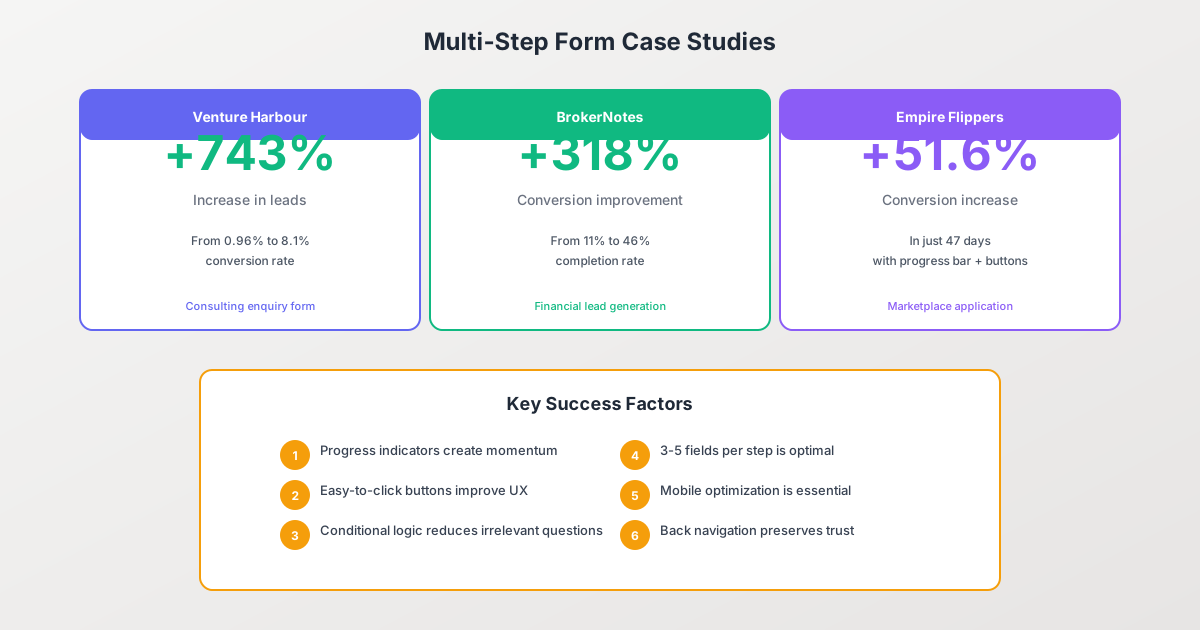
Venture Harbour: +743% Conversion Increase
When Venture Harbour converted their consulting enquiry form from a basic WordPress contact form to a multi-step form, their conversion rate jumped from 0.96% to 8.1%, a 743% increase in qualified leads.
Key changes:
- Broke long form into digestible steps
- Added clear progress indicator
- Started with easy qualification questions
BrokerNotes: 11% to 46% Completion
BrokerNotes, a B2C financial lead generation website, implemented multi-step forms and saw their conversion rate increase from 11% to 46%, a 318% improvement.
Key changes:
- Segmented form by topic
- Used conditional logic to personalize paths
- Optimized for mobile users
Empire Flippers: +51.6% in 47 Days
Empire Flippers optimized their marketplace application multi-step form and achieved a 51.6% conversion increase in just 47 days.
Key changes:
- Added easy-to-click buttons
- Implemented progress bar
- Improved step-by-step clarity
Vendio: +214% Lead Increase
Vendio ran an A/B test comparing an on-page form versus a multi-step form and saw a 214% increase in leads from the multi-step version.
Common Mistakes to Avoid
Learn from others’ errors:
Too Many Steps
Problem: Forms with 10+ steps exhaust users before they finish Solution: Aim for 3-7 steps; combine related short steps
No Progress Indicator
Problem: Users don’t know how long the process will take Solution: Always show clear progress (bar, steps, percentage)
Too Many Fields Per Step
Problem: Steps with 8+ fields feel overwhelming, defeating the purpose Solution: Maximum 3-5 fields per step
Inconsistent Design
Problem: Each step looks different, causing confusion Solution: Maintain visual consistency throughout
No Data Persistence
Problem: Users lose progress if they navigate away or refresh Solution: Auto-save at each step; offer resume capability
Poor Mobile Experience
Problem: Forms that work on desktop break on mobile Solution: Design mobile-first; test on actual devices
Build Multi-Step Forms with Pixelform
Creating effective multi-step forms doesn’t require coding expertise. Pixelform provides all the tools you need to implement everything covered in this tutorial.
Pixelform multi-step features:
- Drag-and-drop step builder: Create and rearrange steps visually
- Built-in progress indicators: Choose from bars, numbers, or breadcrumbs
- Conditional logic: Create branching paths without code
- Auto-save: Progress is saved automatically
- Mobile-responsive: Forms look great on any device
- Step-level analytics: See exactly where users drop off
Create your multi-step form with Pixelform and start converting more visitors into leads.
FAQ
How many steps should a multi-step form have?
The optimal number is typically 3-7 steps. This provides enough segmentation to reduce overwhelm while not creating too many page transitions. Each step should contain 3-5 fields. If you have more questions, add more steps rather than cramming too many fields into fewer steps.
Do multi-step forms always convert better than single-page forms?
Multi-step forms typically convert better for longer forms (10+ fields) or complex processes. For very short forms (3-5 fields), a well-designed single-page form may perform equally well or better. Always A/B test for your specific use case and audience.
Should users be able to skip steps in a multi-step form?
Generally, steps should be completed in order to maintain data integrity and logical flow. However, you can use conditional logic to automatically skip irrelevant steps based on previous answers. Some forms allow reviewing/editing previous steps through breadcrumb navigation.
How do I handle validation in multi-step forms?
Validate each step before allowing progression to the next step. Show inline error messages immediately when fields are invalid. Prevent users from moving forward until required fields are completed. Also validate on the server side before final submission.
What’s the best progress indicator type?
It depends on your form. Progress bars work well for longer forms where percentage feels motivating. Step numbers are clear and precise for forms with defined stages. Breadcrumbs work best when users might want to navigate back to specific sections. Test different options with your audience.
How do I optimize multi-step forms for mobile?
Use single-column layouts, large tap targets (44px minimum), correct input types for mobile keyboards, full-width buttons, and ensure progress indicators are visible without scrolling. Avoid matrix questions, side-by-side fields, and any horizontal scrolling. Test on actual mobile devices, not just browser emulators.
Ready to boost your form conversions with multi-step design? Build your first multi-step form with Pixelform and see the difference strategic form design makes.