File Upload Forms: Complete Guide to Best Practices and Security
Key Takeaways
- Modern file uploads require drag-and-drop support with clear visual feedback across all states
- Over 60% of uploads now originate from mobile devices, making responsive design essential
- Client-side validation improves UX, but server-side validation is mandatory for security
- Chunked uploads enable large file handling and resume capability after network interruptions
- Progress indicators reduce user anxiety and improve completion rates significantly
File uploads add complexity to forms but unlock essential use cases: job applications need resumes, support tickets need screenshots, registrations need documents. When implemented poorly, file uploads become a major source of friction and abandonment.
This guide covers everything you need to build file upload forms that users love and that keep your systems secure.
The Modern File Upload Experience
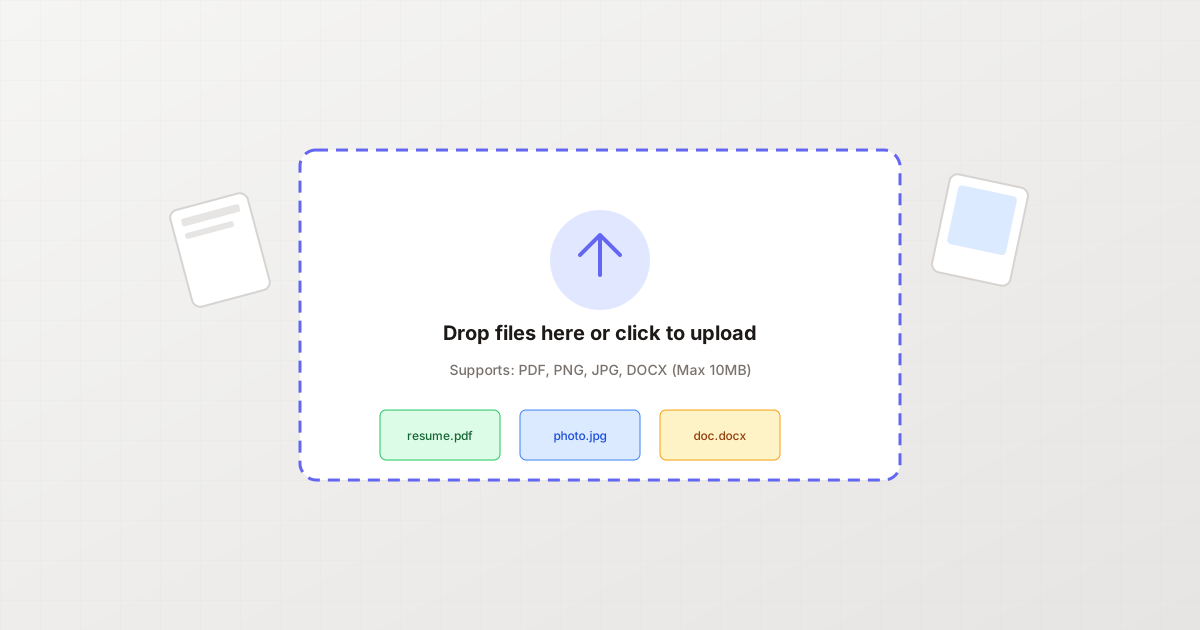
User expectations for file uploads have evolved dramatically. The days of basic “Browse” buttons are over. Users now expect:
- Drag-and-drop functionality that mirrors desktop behavior
- Visual previews of uploaded files
- Progress indicators showing upload status
- Error recovery with clear explanations
- Mobile-friendly interactions
According to Filestack’s research on modern upload interfaces, drag-and-drop zones simulate desktop behaviors, improving intuitiveness. When users can interact with your form the same way they interact with their file system, adoption and completion rates increase.
Essential Upload States
Every file upload component needs to handle multiple states gracefully:
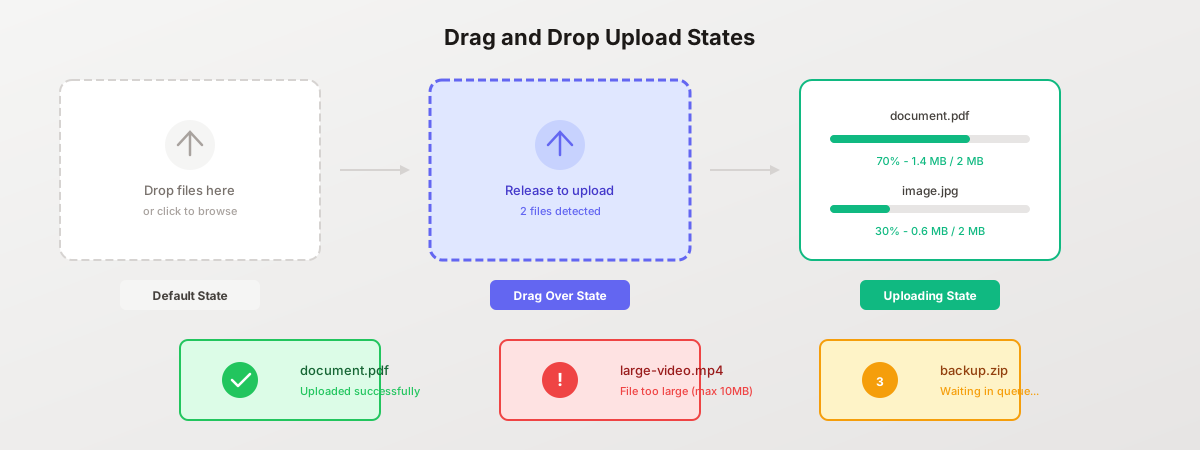
1. Default State
- Clear drop zone with dashed border
- Upload icon and instruction text
- “Browse” button as backup option
2. Drag Over State
- Visual highlight (color change, border emphasis)
- Clear indication the drop zone is active
- Preview of file count being dropped
3. Uploading State
- Individual progress for each file
- Speed and time remaining estimates
- Cancel option for each file
4. Success State
- Confirmation with file preview
- Option to remove or replace
- File size and type information
5. Error State
- Specific error message (not just “Upload failed”)
- Reason for failure (size, type, network)
- Retry option when applicable
6. Queue State
- Position in upload queue
- Waiting indicator
- Option to prioritize or remove
Drag-and-Drop Implementation
The drop zone should be generous. As noted in Uploadcare’s UX best practices, the smaller the available area, the harder it is for a user to aim at it. A more user-friendly approach is to stretch the drop area.
Basic HTML Structure
<div class="upload-zone" id="dropZone">
  <div class="upload-content">
    <div class="upload-icon">
      <svg><!-- Upload arrow icon --></svg>
    </div>
    <p class="upload-text">Drag files here or click to upload</p>
    <p class="upload-hint">Supports: PDF, PNG, JPG, DOCX (Max 10MB)</p>
    <input type="file" id="fileInput" multiple accept=".pdf,.png,.jpg,.jpeg,.docx" hidden>
    <button type="button" class="upload-button">Choose Files</button>
  </div>
  <div class="file-list" id="fileList"></div>
</div>
JavaScript Implementation
const dropZone = document.getElementById('dropZone');
const fileInput = document.getElementById('fileInput');
const fileList = document.getElementById('fileList');

// Prevent default drag behaviors
['dragenter', 'dragover', 'dragleave', 'drop'].forEach(event => {
  dropZone.addEventListener(event, preventDefaults);
  document.body.addEventListener(event, preventDefaults);
});

function preventDefaults(e) {
  e.preventDefault();
  e.stopPropagation();
}

// Highlight drop zone when dragging over
['dragenter', 'dragover'].forEach(event => {
  dropZone.addEventListener(event, highlight);
});

['dragleave', 'drop'].forEach(event => {
  dropZone.addEventListener(event, unhighlight);
});

function highlight() {
  dropZone.classList.add('drag-over');
}

function unhighlight() {
  dropZone.classList.remove('drag-over');
}

// Handle dropped files
dropZone.addEventListener('drop', handleDrop);

function handleDrop(e) {
  const files = e.dataTransfer.files;
  handleFiles(files);
}

// Handle click to upload
dropZone.querySelector('.upload-button').addEventListener('click', () => {
  fileInput.click();
});

fileInput.addEventListener('change', () => {
  handleFiles(fileInput.files);
});

function handleFiles(files) {
  [...files].forEach(file => {
    if (validateFile(file)) {
      uploadFile(file);
    }
  });
}
CSS for Visual Feedback
.upload-zone {
  border: 2px dashed #d6d3d1;
  border-radius: 12px;
  padding: 40px;
  text-align: center;
  transition: all 0.2s ease;
  cursor: pointer;
}

.upload-zone:hover {
  border-color: #6366F1;
  background-color: #f5f5f4;
}

.upload-zone.drag-over {
  border-color: #6366F1;
  background-color: #e0e7ff;
  border-style: solid;
}

.upload-zone.drag-over .upload-text {
  color: #4338ca;
}

/* Ensure large enough touch target */
.upload-button {
  min-height: 44px;
  min-width: 44px;
  padding: 12px 24px;
}
File Validation
Validation happens at two levels: client-side for immediate feedback, and server-side for security. Never trust client-side validation alone.
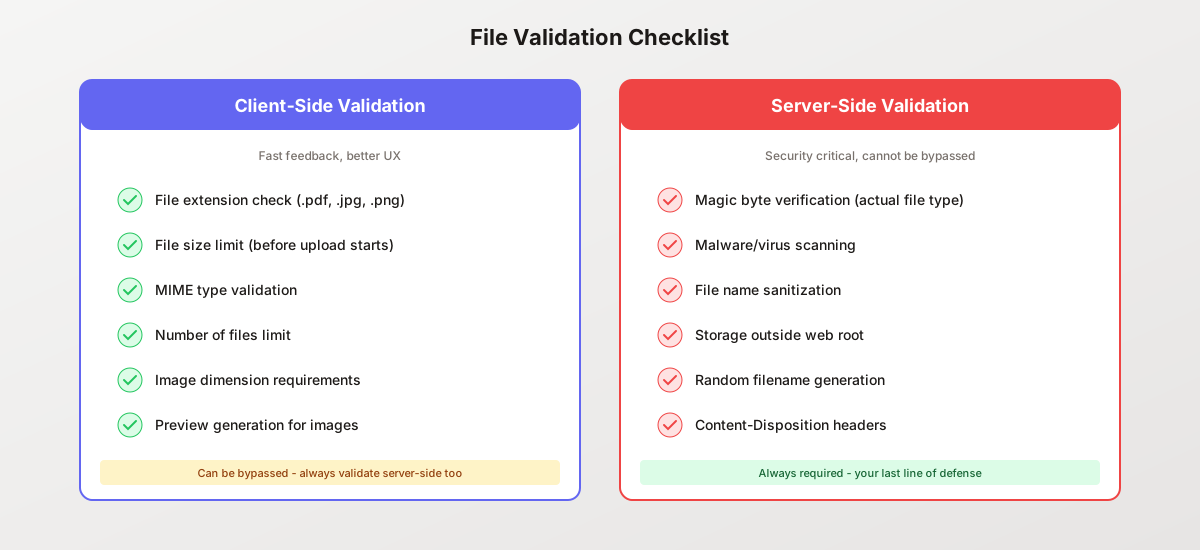
Client-Side Validation
Provide instant feedback before upload begins:
const ALLOWED_TYPES = ['application/pdf', 'image/png', 'image/jpeg', 'application/vnd.openxmlformats-officedocument.wordprocessingml.document'];
const MAX_FILE_SIZE = 10 * 1024 * 1024; // 10MB
const MAX_FILES = 5;

function validateFile(file) {
  const errors = [];

  // Check file type
  if (!ALLOWED_TYPES.includes(file.type)) {
    errors.push(`${file.name}: File type not allowed. Use PDF, PNG, JPG, or DOCX.`);
  }

  // Check file size
  if (file.size > MAX_FILE_SIZE) {
    const sizeMB = (file.size / (1024 * 1024)).toFixed(1);
    errors.push(`${file.name}: File too large (${sizeMB}MB). Maximum is 10MB.`);
  }

  // Check file extension matches type
  const extension = file.name.split('.').pop().toLowerCase();
  const expectedExtensions = {
    'application/pdf': ['pdf'],
    'image/png': ['png'],
    'image/jpeg': ['jpg', 'jpeg'],
  };

  const expected = expectedExtensions[file.type];
  if (expected && !expected.includes(extension)) {
    errors.push(`${file.name}: File extension doesn't match content type.`);
  }

  if (errors.length > 0) {
    showErrors(errors);
    return false;
  }

  return true;
}

function showErrors(errors) {
  const errorContainer = document.getElementById('uploadErrors');
  errorContainer.innerHTML = errors.map(err =>
    `<div class="error-message">${err}</div>`
  ).join('');
}
Server-Side Validation (Critical)
According to security best practices, client-side validation can always be bypassed. Server-side validation is your true security layer:
// Node.js/Express example
const multer = require('multer');
const fileType = require('file-type');
const ClamScan = require('clamscan');

// Configure multer with limits
const upload = multer({
  limits: {
    fileSize: 10 * 1024 * 1024, // 10MB
    files: 5
  },
  fileFilter: (req, file, cb) => {
    const allowed = ['application/pdf', 'image/png', 'image/jpeg'];
    if (allowed.includes(file.mimetype)) {
      cb(null, true);
    } else {
      cb(new Error('Invalid file type'), false);
    }
  }
});

// Verify actual file content (magic bytes)
async function verifyFileType(filePath, expectedMime) {
  const type = await fileType.fromFile(filePath);
  if (!type || type.mime !== expectedMime) {
    throw new Error('File content does not match declared type');
  }
  return true;
}

// Scan for malware
async function scanForMalware(filePath) {
  const clam = await new ClamScan().init();
  const { isInfected, viruses } = await clam.scanFile(filePath);
  if (isInfected) {
    throw new Error(`Malware detected: ${viruses.join(', ')}`);
  }
  return true;
}

// Generate safe filename
function sanitizeFilename(original) {
  const crypto = require('crypto');
  const ext = original.split('.').pop().toLowerCase();
  const hash = crypto.randomBytes(16).toString('hex');
  const timestamp = Date.now();
  return `${timestamp}-${hash}.${ext}`;
}

// Complete upload handler
app.post('/upload', upload.array('files'), async (req, res) => {
  try {
    const results = [];

    for (const file of req.files) {
      // Verify actual file type
      await verifyFileType(file.path, file.mimetype);

      // Scan for malware
      await scanForMalware(file.path);

      // Move to secure location with sanitized name
      const safeName = sanitizeFilename(file.originalname);
      const securePath = path.join(UPLOAD_DIR, safeName);
      await fs.rename(file.path, securePath);

      results.push({
        original: file.originalname,
        stored: safeName,
        size: file.size
      });
    }

    res.json({ success: true, files: results });
  } catch (error) {
    res.status(400).json({ error: error.message });
  }
});
Progress Indicators
According to CLIMB’s UX best practices, when users are uploading files, they need to know what’s happening. If the process is unclear or confusing, it can lead to frustration and abandonment.
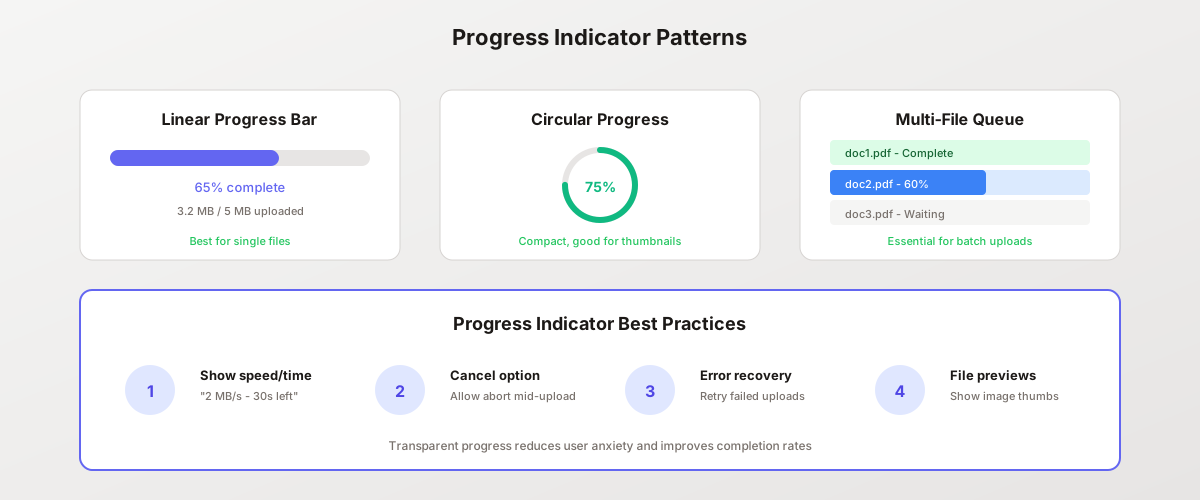
Implementing Progress Tracking
function uploadFile(file) {
  const formData = new FormData();
  formData.append('file', file);

  const xhr = new XMLHttpRequest();

  // Create progress element
  const progressItem = createProgressElement(file);
  fileList.appendChild(progressItem);

  // Track upload progress
  xhr.upload.addEventListener('progress', (e) => {
    if (e.lengthComputable) {
      const percent = Math.round((e.loaded / e.total) * 100);
      const loaded = formatFileSize(e.loaded);
      const total = formatFileSize(e.total);

      updateProgress(progressItem, {
        percent,
        loaded,
        total,
        status: 'uploading'
      });
    }
  });

  // Handle completion
  xhr.addEventListener('load', () => {
    if (xhr.status === 200) {
      updateProgress(progressItem, { status: 'complete' });
    } else {
      updateProgress(progressItem, {
        status: 'error',
        message: 'Upload failed. Please try again.'
      });
    }
  });

  // Handle errors
  xhr.addEventListener('error', () => {
    updateProgress(progressItem, {
      status: 'error',
      message: 'Network error. Check your connection.'
    });
  });

  // Allow cancellation
  progressItem.querySelector('.cancel-btn').addEventListener('click', () => {
    xhr.abort();
    progressItem.remove();
  });

  xhr.open('POST', '/api/upload');
  xhr.send(formData);
}

function createProgressElement(file) {
  const div = document.createElement('div');
  div.className = 'file-progress';
  div.innerHTML = `
    <div class="file-info">
      <span class="file-name">${file.name}</span>
      <span class="file-size">${formatFileSize(file.size)}</span>
    </div>
    <div class="progress-bar">
      <div class="progress-fill" style="width: 0%"></div>
    </div>
    <div class="progress-text">Preparing...</div>
    <button type="button" class="cancel-btn" title="Cancel">X</button>
  `;
  return div;
}

function updateProgress(element, data) {
  const fill = element.querySelector('.progress-fill');
  const text = element.querySelector('.progress-text');

  if (data.status === 'uploading') {
    fill.style.width = `${data.percent}%`;
    text.textContent = `${data.percent}% - ${data.loaded} / ${data.total}`;
    element.className = 'file-progress uploading';
  } else if (data.status === 'complete') {
    fill.style.width = '100%';
    text.textContent = 'Complete';
    element.className = 'file-progress complete';
    element.querySelector('.cancel-btn').remove();
  } else if (data.status === 'error') {
    text.textContent = data.message;
    element.className = 'file-progress error';
  }
}

function formatFileSize(bytes) {
  if (bytes < 1024) return bytes + ' B';
  if (bytes < 1024 * 1024) return (bytes / 1024).toFixed(1) + ' KB';
  return (bytes / (1024 * 1024)).toFixed(1) + ' MB';
}
Mobile File Uploads
With over 60% of uploads now originating from mobile devices, according to industry research, mobile optimization is essential.
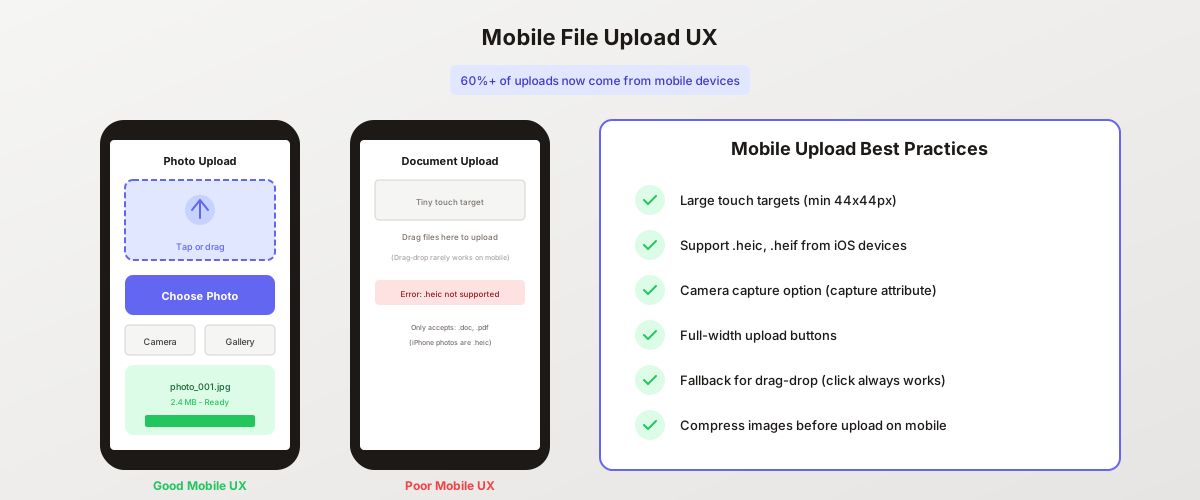
Mobile-Specific Considerations
1. Touch Targets Minimum 44x44 pixels for all interactive elements:
.upload-button,
.cancel-btn,
.file-action {
  min-width: 44px;
  min-height: 44px;
  padding: 12px;
}
2. Camera Access Enable direct camera capture on mobile:
<!-- Photo capture -->
<input type="file" accept="image/*" capture="environment">

<!-- Document scan -->
<input type="file" accept="image/*,application/pdf" capture="environment">

<!-- Front camera for selfies -->
<input type="file" accept="image/*" capture="user">
3. iOS Format Support Modern iPhones use HEIC format by default. Either convert on upload or accept the format:
const ALLOWED_IMAGE_TYPES = [
  'image/jpeg',
  'image/png',
  'image/webp',
  'image/heic',  // iPhone
  'image/heif'   // iPhone
];

// Server-side conversion using sharp
const sharp = require('sharp');

async function convertHeicToJpeg(inputPath, outputPath) {
  await sharp(inputPath)
    .jpeg({ quality: 85 })
    .toFile(outputPath);
}
4. Full-Width Layout On mobile, make upload areas span the full width:
@media (max-width: 768px) {
  .upload-zone {
    width: 100%;
    padding: 30px 20px;
  }

  .upload-button {
    width: 100%;
  }

  /* Stack file list vertically */
  .file-list {
    display: flex;
    flex-direction: column;
    gap: 10px;
  }
}
5. Graceful Drag-Drop Fallback Drag-and-drop rarely works on mobile. Always provide click-to-upload:
// Detect touch device
const isTouchDevice = 'ontouchstart' in window;

if (isTouchDevice) {
  // Hide drag-drop instructions
  document.querySelector('.drag-text').style.display = 'none';
  // Make entire zone clickable
  dropZone.addEventListener('click', () => fileInput.click());
}
File Types and Security
Different use cases require different allowed file types. Choose based on actual needs, using a whitelist approach.
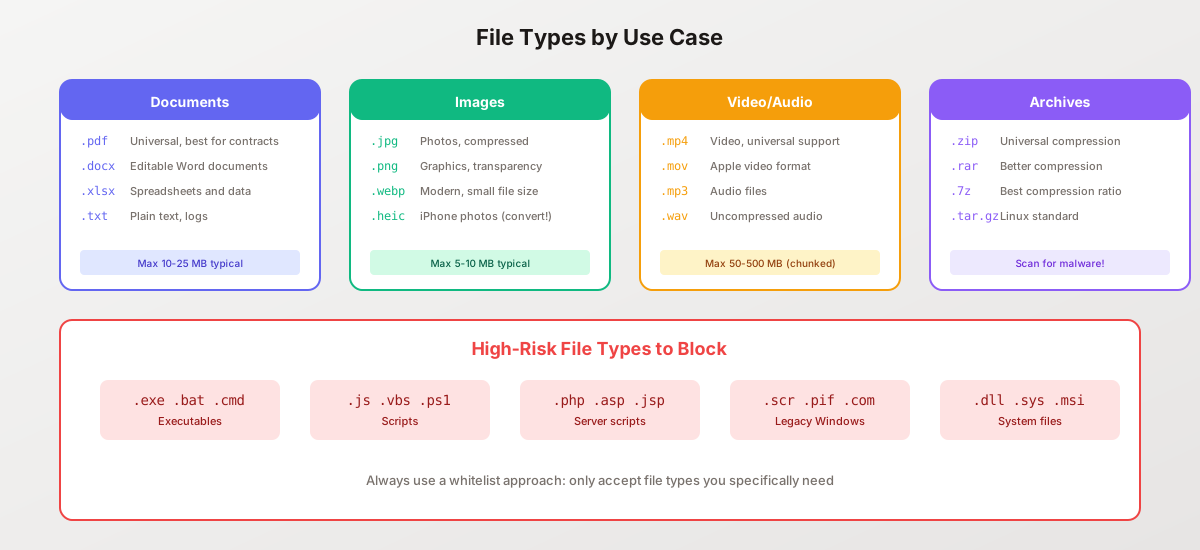
File Type Configuration by Use Case
Resume/CV Upload:
const RESUME_TYPES = {
  accept: '.pdf,.doc,.docx',
  mimeTypes: [
    'application/pdf',
    'application/msword',
    'application/vnd.openxmlformats-officedocument.wordprocessingml.document'
  ],
  maxSize: 5 * 1024 * 1024 // 5MB
};
Image Upload:
const IMAGE_TYPES = {
  accept: '.jpg,.jpeg,.png,.webp,.heic',
  mimeTypes: [
    'image/jpeg',
    'image/png',
    'image/webp',
    'image/heic',
    'image/heif'
  ],
  maxSize: 10 * 1024 * 1024 // 10MB
};
Document Collection:
const DOCUMENT_TYPES = {
  accept: '.pdf,.doc,.docx,.xls,.xlsx,.ppt,.pptx',
  mimeTypes: [
    'application/pdf',
    'application/msword',
    'application/vnd.openxmlformats-officedocument.wordprocessingml.document',
    'application/vnd.ms-excel',
    'application/vnd.openxmlformats-officedocument.spreadsheetml.sheet',
    'application/vnd.ms-powerpoint',
    'application/vnd.openxmlformats-officedocument.presentationml.presentation'
  ],
  maxSize: 25 * 1024 * 1024 // 25MB
};
Dangerous File Types to Block
Always block executable and script files:
const BLOCKED_EXTENSIONS = [
  // Executables
  'exe', 'bat', 'cmd', 'com', 'pif', 'scr', 'msi', 'dll', 'sys',
  // Scripts
  'js', 'vbs', 'vbe', 'jse', 'ws', 'wsf', 'wsc', 'wsh', 'ps1', 'psm1',
  // Server scripts
  'php', 'php3', 'php4', 'php5', 'phtml', 'asp', 'aspx', 'jsp', 'jspx',
  // Others
  'hta', 'cpl', 'msc', 'jar', 'gadget'
];

function hasBlockedExtension(filename) {
  const ext = filename.split('.').pop().toLowerCase();
  return BLOCKED_EXTENSIONS.includes(ext);
}
Chunked and Resumable Uploads
For large files, chunked uploads provide reliability and the ability to resume after interruptions.
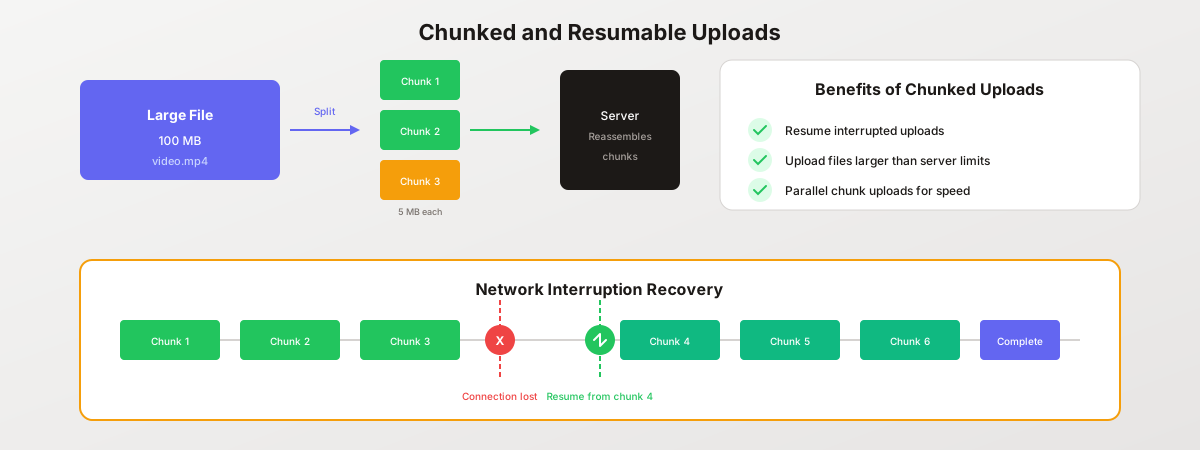
According to modern upload system research, chunked uploads break large files into smaller pieces, making uploading faster and more reliable. Pause and resume functions give users control over their uploads.
Client-Side Chunking
class ChunkedUploader {
  constructor(file, options = {}) {
    this.file = file;
    this.chunkSize = options.chunkSize || 5 * 1024 * 1024; // 5MB chunks
    this.uploadUrl = options.uploadUrl || '/api/upload/chunk';
    this.currentChunk = 0;
    this.totalChunks = Math.ceil(file.size / this.chunkSize);
    this.uploadId = null;
    this.onProgress = options.onProgress || (() => {});
    this.onComplete = options.onComplete || (() => {});
    this.onError = options.onError || (() => {});
  }

  async start() {
    // Initialize upload session
    const initResponse = await fetch('/api/upload/init', {
      method: 'POST',
      headers: { 'Content-Type': 'application/json' },
      body: JSON.stringify({
        filename: this.file.name,
        size: this.file.size,
        totalChunks: this.totalChunks
      })
    });

    const { uploadId } = await initResponse.json();
    this.uploadId = uploadId;

    // Check for resumable chunks
    await this.checkResumable();

    // Upload remaining chunks
    await this.uploadChunks();
  }

  async checkResumable() {
    const response = await fetch(`/api/upload/status/${this.uploadId}`);
    const { uploadedChunks } = await response.json();
    this.currentChunk = uploadedChunks.length;
  }

  async uploadChunks() {
    while (this.currentChunk < this.totalChunks) {
      try {
        await this.uploadChunk(this.currentChunk);
        this.currentChunk++;

        const progress = Math.round((this.currentChunk / this.totalChunks) * 100);
        this.onProgress({ progress, chunk: this.currentChunk, total: this.totalChunks });
      } catch (error) {
        this.onError(error);
        // Save state for resume
        localStorage.setItem(`upload_${this.uploadId}`, this.currentChunk);
        throw error;
      }
    }

    // Complete upload
    await this.finalize();
  }

  async uploadChunk(chunkIndex) {
    const start = chunkIndex * this.chunkSize;
    const end = Math.min(start + this.chunkSize, this.file.size);
    const chunk = this.file.slice(start, end);

    const formData = new FormData();
    formData.append('chunk', chunk);
    formData.append('chunkIndex', chunkIndex);
    formData.append('uploadId', this.uploadId);

    const response = await fetch(this.uploadUrl, {
      method: 'POST',
      body: formData
    });

    if (!response.ok) {
      throw new Error(`Chunk ${chunkIndex} upload failed`);
    }
  }

  async finalize() {
    const response = await fetch('/api/upload/complete', {
      method: 'POST',
      headers: { 'Content-Type': 'application/json' },
      body: JSON.stringify({ uploadId: this.uploadId })
    });

    const result = await response.json();
    localStorage.removeItem(`upload_${this.uploadId}`);
    this.onComplete(result);
  }

  pause() {
    this.paused = true;
  }

  resume() {
    this.paused = false;
    this.uploadChunks();
  }
}

// Usage
const uploader = new ChunkedUploader(largeFile, {
  onProgress: ({ progress }) => updateProgressBar(progress),
  onComplete: (result) => showSuccess(result),
  onError: (error) => showError(error)
});

uploader.start();
Server-Side Chunk Handling
const fs = require('fs');
const path = require('path');

// Store chunk metadata
const uploads = new Map();

app.post('/api/upload/init', (req, res) => {
  const { filename, size, totalChunks } = req.body;
  const uploadId = crypto.randomUUID();

  uploads.set(uploadId, {
    filename,
    size,
    totalChunks,
    uploadedChunks: [],
    createdAt: Date.now()
  });

  // Create temp directory for chunks
  const chunkDir = path.join(TEMP_DIR, uploadId);
  fs.mkdirSync(chunkDir, { recursive: true });

  res.json({ uploadId });
});

app.post('/api/upload/chunk', upload.single('chunk'), (req, res) => {
  const { uploadId, chunkIndex } = req.body;
  const uploadInfo = uploads.get(uploadId);

  if (!uploadInfo) {
    return res.status(404).json({ error: 'Upload not found' });
  }

  // Move chunk to temp directory
  const chunkPath = path.join(TEMP_DIR, uploadId, `chunk_${chunkIndex}`);
  fs.renameSync(req.file.path, chunkPath);

  uploadInfo.uploadedChunks.push(parseInt(chunkIndex));
  res.json({ success: true });
});

app.post('/api/upload/complete', async (req, res) => {
  const { uploadId } = req.body;
  const uploadInfo = uploads.get(uploadId);

  if (!uploadInfo) {
    return res.status(404).json({ error: 'Upload not found' });
  }

  // Verify all chunks received
  if (uploadInfo.uploadedChunks.length !== uploadInfo.totalChunks) {
    return res.status(400).json({ error: 'Missing chunks' });
  }

  // Reassemble file
  const chunkDir = path.join(TEMP_DIR, uploadId);
  const finalPath = path.join(UPLOAD_DIR, sanitizeFilename(uploadInfo.filename));
  const writeStream = fs.createWriteStream(finalPath);

  for (let i = 0; i < uploadInfo.totalChunks; i++) {
    const chunkPath = path.join(chunkDir, `chunk_${i}`);
    const chunkData = fs.readFileSync(chunkPath);
    writeStream.write(chunkData);
    fs.unlinkSync(chunkPath);
  }

  writeStream.end();
  fs.rmdirSync(chunkDir);
  uploads.delete(uploadId);

  res.json({ success: true, path: finalPath });
});
Error Handling and User Feedback
According to Uploadcare’s research, encountering errors during file upload can be inevitable. A UX-friendly file uploader should provide informative error messages that are not only clear and concise but also provide reasons why the error happened.
Error Message Examples
Instead of: “Upload failed” Use: “File is too large. Maximum file size is 10MB. Your file is 15.3MB.”
Instead of: “Invalid file” Use: “This file type is not supported. Please upload a PDF, PNG, JPG, or DOCX file.”
Instead of: “Error” Use: “Network connection lost. Your upload will resume automatically when reconnected.”
Error Recovery Patterns
class ResilientUploader {
  constructor(file, options) {
    this.file = file;
    this.maxRetries = options.maxRetries || 3;
    this.retryDelay = options.retryDelay || 1000;
  }

  async upload() {
    let attempts = 0;

    while (attempts < this.maxRetries) {
      try {
        return await this.attemptUpload();
      } catch (error) {
        attempts++;

        if (attempts >= this.maxRetries) {
          throw new Error(`Upload failed after ${this.maxRetries} attempts: ${error.message}`);
        }

        // Exponential backoff
        await this.delay(this.retryDelay * Math.pow(2, attempts - 1));

        this.onRetry?.({
          attempt: attempts,
          maxAttempts: this.maxRetries,
          error: error.message
        });
      }
    }
  }

  delay(ms) {
    return new Promise(resolve => setTimeout(resolve, ms));
  }
}
FAQ
What is the best file size limit for web forms?
The optimal file size limit depends on your use case. For document uploads like resumes and contracts, 5-10MB covers most files while preventing abuse. For images, 10MB handles high-resolution photos. For video, consider 50-500MB with chunked uploads. According to best practices, always validate sizes both client-side for immediate feedback and server-side for security. Display the limit clearly in the upload interface.
How do I implement drag-and-drop file uploads?
Implement drag-and-drop by listening for dragenter, dragover, dragleave, and drop events on your upload zone. Prevent default browser behavior for all events. Add visual feedback (color changes, border highlights) during dragover. On drop, access files via event.dataTransfer.files. Always provide a click-to-upload fallback since drag-and-drop does not work reliably on mobile devices.
What file types should I allow in upload forms?
Use a whitelist approach, only accepting file types your application actually needs. For documents, PDF is most universal. For images, accept JPG, PNG, and WebP. Include HEIC for iPhone users. Never accept executable files (.exe, .bat), scripts (.js, .php), or system files (.dll, .sys). Validate both the file extension and the actual file content using magic byte verification on the server.
How can I make file uploads work better on mobile?
Mobile upload optimization requires large touch targets (minimum 44x44 pixels), full-width buttons and upload zones, camera capture integration using the capture attribute, support for iPhone HEIC format, and client-side image compression before upload. Remove drag-and-drop instructions on mobile since they do not work reliably. Test on actual devices, not just browser simulators.
How do chunked uploads work?
Chunked uploads split large files into smaller pieces (typically 1-5MB each) and upload them sequentially or in parallel. The server reassembles chunks into the complete file. Benefits include the ability to resume interrupted uploads, uploading files larger than server limits, and parallel chunk uploads for faster transfers. Store upload progress in localStorage to enable resume after page refresh or connection loss.
What security measures are essential for file uploads?
Essential security measures include server-side validation of file type using magic bytes (not just extension), malware scanning before storage, storing files outside the web root, generating random filenames to prevent path traversal, setting proper Content-Disposition headers, implementing rate limiting, and using HTTPS for all uploads. Client-side validation improves UX but can be bypassed, so never rely on it for security.
How do I show upload progress to users?
Implement progress tracking using XMLHttpRequest’s upload.onprogress event or the Fetch API with ReadableStream. Display percentage complete, bytes uploaded vs total, and estimated time remaining. For multiple files, show individual progress bars plus overall progress. Include cancel buttons and retry options. Clear progress indicators reduce user anxiety and improve completion rates significantly.
Build Better File Upload Forms
File uploads do not have to be a source of friction. With proper drag-and-drop implementation, clear progress indicators, comprehensive validation, and mobile optimization, file uploads become a seamless part of your form experience.
Create your first file upload form with Pixelform. Built-in file upload fields support drag-and-drop, progress tracking, and secure storage out of the box.