Form Analytics: 8 Key Metrics You Should Be Tracking
You can’t improve what you don’t measure. Yet most businesses create forms and never look at the data again.
Form analytics tell you exactly what’s working, what’s broken, and where you’re losing potential leads or customers.
In this guide, you’ll learn the 8 essential form metrics to track and how to use them to optimize performance.
Why Form Analytics Matter
Consider this scenario:
- Your landing page gets 10,000 visitors per month
- Your form conversion rate is 2%
- You get 200 leads per month
By analyzing and optimizing your form, you might improve conversions to 4%. Same traffic, now 400 leads. That’s a 100% increase in results with zero additional marketing spend.
Form analytics reveal exactly where these opportunities exist.
Metric 1: Conversion Rate
What it is: The percentage of form viewers who complete a submission.
Formula: (Form Submissions ÷ Form Views) × 100
Example: 500 submissions ÷ 10,000 views = 5% conversion rate
Benchmarks
| Form Type | Poor | Average | Good | Excellent |
|---|---|---|---|---|
| Contact forms | <2% | 2-5% | 5-10% | >10% |
| Lead magnets | <10% | 10-20% | 20-35% | >35% |
| Checkout forms | <50% | 50-65% | 65-75% | >75% |
| Survey forms | <20% | 20-40% | 40-60% | >60% |
How to Improve
- Reduce form fields
- Improve page load speed
- Strengthen your value proposition
- Add social proof near the form
Metric 2: Completion Rate
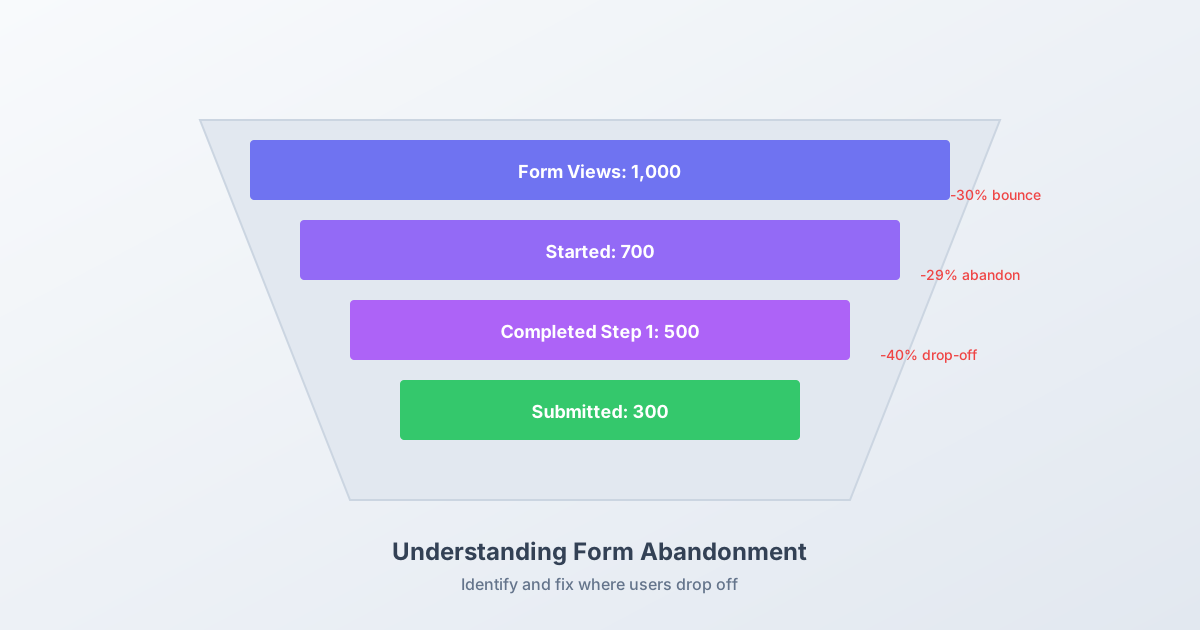
What it is: The percentage of people who start your form and finish it.
Formula: (Form Submissions ÷ Form Starts) × 100
Different from conversion rate: Conversion rate measures all viewers. Completion rate measures only those who began filling out the form.
Why It Matters
A low completion rate (high abandonment) signals problems with the form itself:
- Too many fields
- Confusing questions
- Technical issues
- Poor mobile experience
Benchmarks
- Below 60%: Serious problems — investigate immediately
- 60-75%: Room for improvement
- 75-85%: Good performance
- Above 85%: Excellent
How to Improve
- Add progress indicators
- Use inline validation
- Simplify complex questions
- Ensure mobile responsiveness
Metric 3: Field-Level Drop-Off
What it is: Which specific fields cause people to abandon your form.
How to track: Form analytics tools show where users leave mid-form.
Common Problem Fields
| Field Type | Why Users Abandon |
|---|---|
| Phone number | Privacy concerns, unexpected request |
| Company size | Feels like qualification |
| Address | Too much effort for the value |
| Open-ended text | Requires too much thought |
| Budget questions | Users aren’t ready to commit |
How to Use This Data
- Identify fields with high drop-off
- Ask: Is this field essential?
- If yes: Reposition or reframe it
- If no: Remove it entirely
Metric 4: Time to Complete
What it is: How long it takes users to complete your form.
Why it matters: Unusually long completion times indicate confusion or friction.
Benchmarks
| Form Length | Expected Time |
|---|---|
| 3-5 fields | 30-60 seconds |
| 6-10 fields | 1-2 minutes |
| 11-20 fields | 2-4 minutes |
| 20+ fields | 4+ minutes |
Warning Signs
- Much longer than expected: Users are confused or distracted
- Much shorter than expected: Users may be submitting without reading (or bots)
- High variance: Some questions may be unclear
How to Improve
- Clarify confusing questions
- Provide helpful placeholder text
- Add instructional copy where needed
- Consider breaking long forms into steps
Metric 5: Submission by Device
What it is: Breakdown of form submissions by device type (desktop, mobile, tablet).
Why it matters: If most traffic is mobile but conversions skew desktop, your mobile form experience needs work.
How to Analyze
Compare:
- Traffic by device (from your website analytics)
- Form submissions by device (from form analytics)
If 60% of traffic is mobile but only 30% of submissions are mobile, you’re losing mobile conversions.
Mobile Optimization Priorities
- Test on actual devices (not just browser simulators)
- Ensure touch targets are large enough
- Eliminate horizontal scrolling
- Use appropriate keyboard types
Metric 6: Submission by Source
What it is: Where your form submissions originate (organic search, paid ads, social, email, etc.).
Why it matters: Helps you understand which channels drive quality leads.
Example Analysis
| Source | Submissions | Conversion Rate | Cost/Submission |
|---|---|---|---|
| Organic search | 150 | 4.2% | $0 |
| Google Ads | 200 | 2.8% | $25 |
| Facebook Ads | 100 | 1.5% | $40 |
| 50 | 12% | $2 |
This data shows email has the highest conversion rate, Facebook Ads the lowest. You might optimize the Facebook landing page or reallocate budget.
How to Track
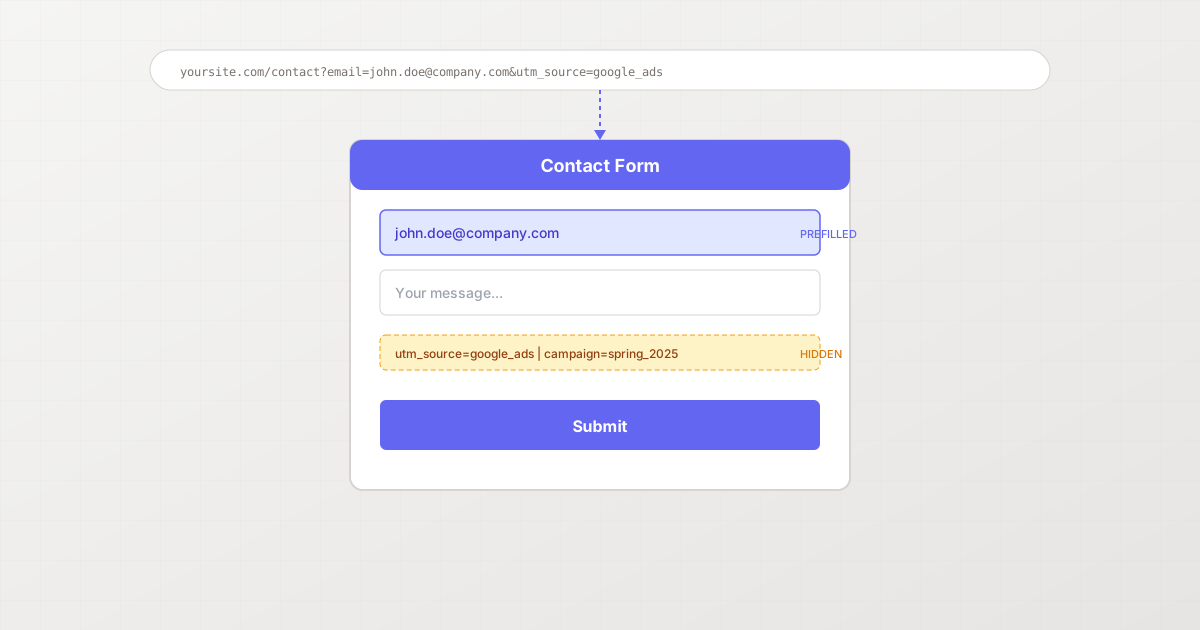
- Use UTM parameters on links
- Configure analytics to pass source data
- Integrate form data with your analytics platform
Metric 7: Error Rate
What it is: How often users encounter validation errors.
Why it matters: High error rates frustrate users and cause abandonment.
Types of Errors to Track
- Validation errors: Invalid email format, required field empty
- Submission errors: Technical failures, timeout issues
- Duplicate errors: User already exists in system
Benchmarks
- Below 5%: Good
- 5-15%: Investigate specific fields
- Above 15%: Serious UX problem
How to Reduce Errors
- Add inline validation (check fields before submission)
- Provide clear format requirements
- Use input masks for phone numbers, dates
- Offer helpful error messages (not just “Invalid input”)
Metric 8: Post-Submission Behavior
What it is: What users do after submitting your form.
Why it matters: The form is often just the first step. What happens next affects overall conversion.
Key Post-Submission Metrics
- Thank you page engagement: Do users read it?
- Email open rates: Are confirmation emails opened?
- Next action taken: Did they book a demo, start a trial?
- Time to next action: How quickly do they engage further?
Optimization Opportunities
- Use the thank you page strategically (not just “Thanks!”)
- Include relevant next steps
- Add calendar booking for demos
- Promote related content or offers
Building a Form Analytics Dashboard
Bring all metrics together in one view:
Essential Dashboard Elements
- Headline metrics: Conversion rate, completion rate, total submissions
- Trend charts: Performance over time
- Field-level data: Drop-off points
- Device breakdown: Desktop vs. mobile
- Source attribution: Where submissions come from
Review Cadence
- Weekly: Check headline metrics, spot anomalies
- Monthly: Deep-dive into field-level and device data
- Quarterly: Comprehensive analysis, compare to benchmarks
Tools for Form Analytics
Built-in Analytics (Recommended)
Many form builders include analytics. Pixelform, for example, provides:
- Real-time submission tracking
- Conversion funnel visualization
- Field-level drop-off analysis
- Device and source breakdowns
Third-Party Integration
For advanced analysis:
- Google Analytics (with event tracking)
- Mixpanel or Amplitude (for product analytics)
- Hotjar or FullStory (for session recordings)
Taking Action on Your Data
Data without action is useless. Here’s a framework:
1. Identify the Biggest Problem
Look for:
- Lowest-performing metric vs. benchmark
- Highest drop-off field
- Largest device gap
2. Hypothesize a Solution
Example: “If we remove the phone number field, completion rate will increase.”
3. Test the Change
Run an A/B test or implement and measure.
4. Measure the Impact
Did the metric improve? By how much?
5. Iterate
Move to the next opportunity.
Start Tracking Your Form Performance
You can’t optimize what you don’t measure. With proper form analytics, you’ll:
- Identify exactly where you’re losing leads
- Make data-driven improvements
- Prove the ROI of your optimization efforts
Create your first form with Pixelform and get built-in analytics from day one.