Form Copywriting: Words That Convert Visitors into Submissions
Key Takeaways
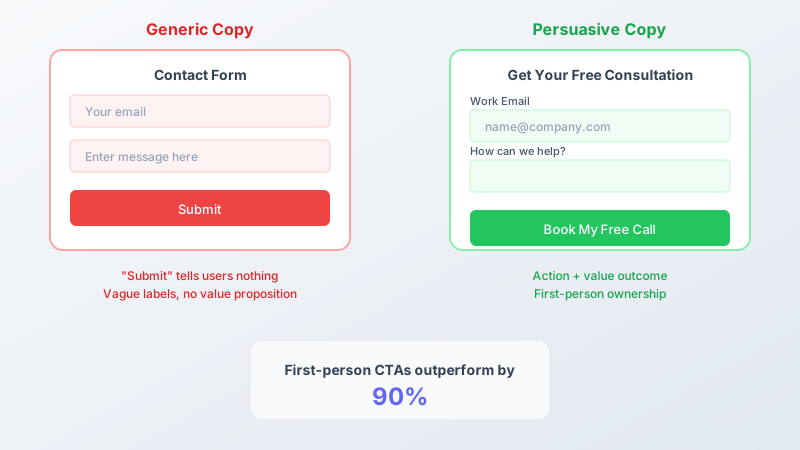
- First-person CTA buttons (“Get My Report”) outperform second-person by 90% in A/B tests
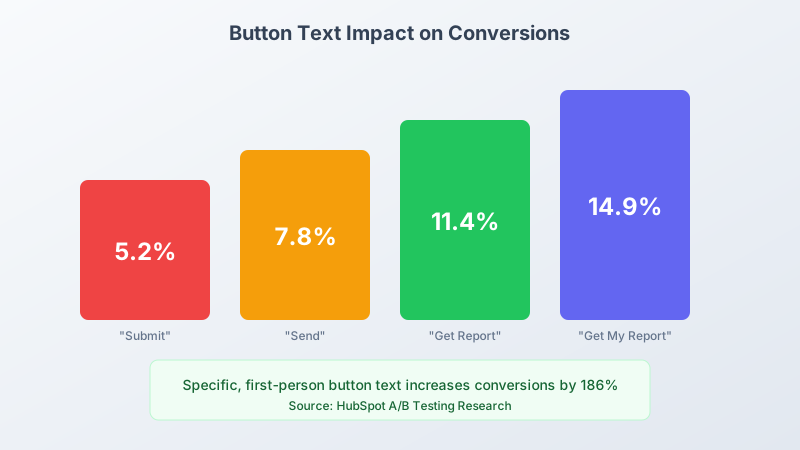
- Specific button text converts 13.5% better than generic “Submit” according to HubSpot research
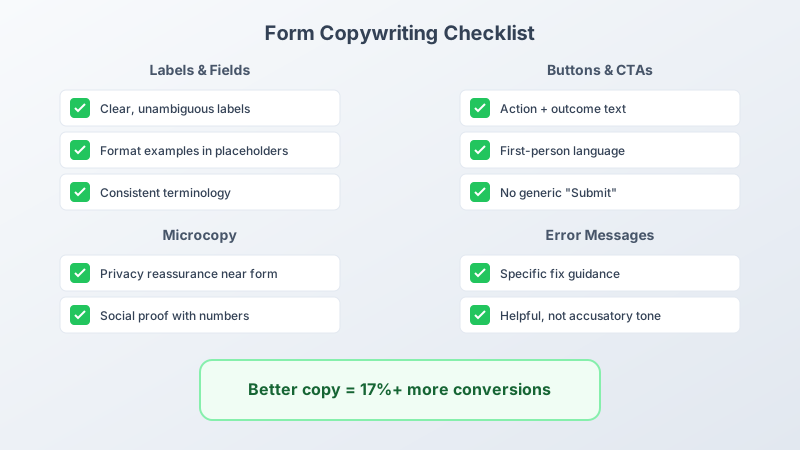
- Adding benefit-focused microcopy near forms increases conversions by 17% on average
- Clear, action-oriented labels reduce form completion time by 25% compared to vague alternatives
Every word on your form influences whether users complete it. From field labels to error messages, form copywriting shapes the user experience and directly impacts conversions. This guide covers the principles and techniques of writing forms that convert.
Why Form Copy Matters
Forms are conversion points. They’re where interest becomes action, where browsers become leads, where visitors become customers.
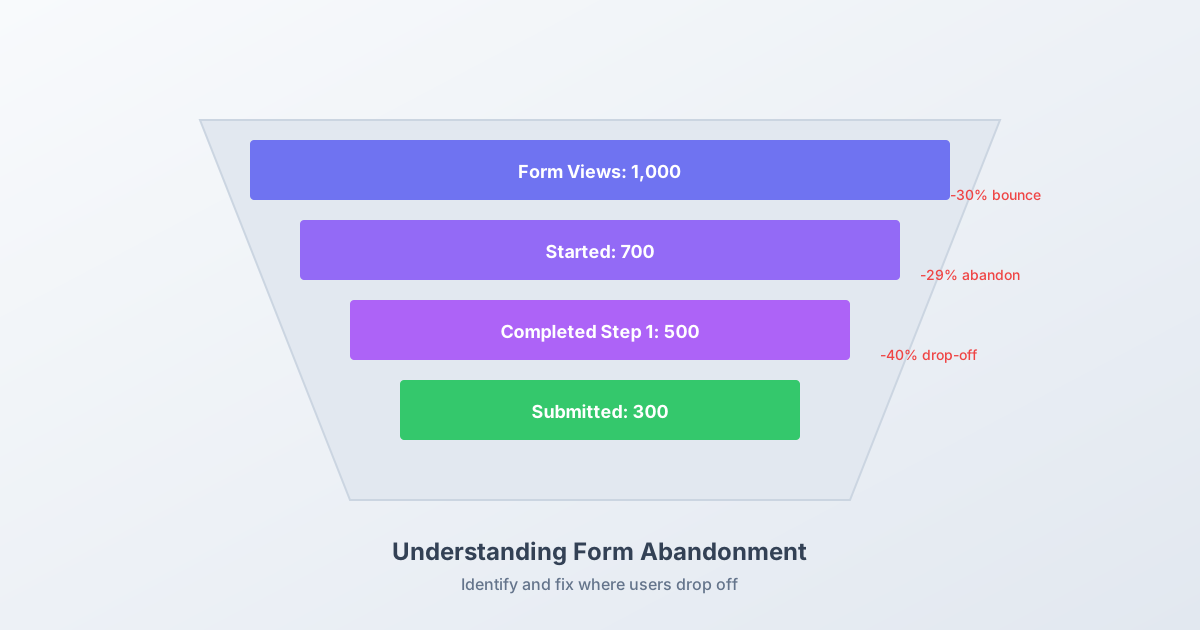
According to Nielsen Norman Group research, users read only about 20% of web page content. On forms, every word they do read carries significant weight. Poor copy creates:
- Confusion about what information is needed
- Hesitation about submitting
- Errors from misunderstanding requirements
- Abandonment from frustration
Good form copy eliminates friction and guides users confidently to completion.
Field Labels: Clarity Above All
The Golden Rule
Labels should be instantly understandable. If users have to think about what a label means, you’ve already lost.
Confusing labels:
- “Handle” (username? social media handle? door handle?)
- “Identifier” (what kind?)
- “Contact” (name? phone? email?)
Clear labels:
- “Username”
- “Customer ID”
- “Email Address”
Be Specific, Not Clever
Avoid marketing speak in labels:
- “Your Dream Project” -> “Project Description”
- “Where Can We Reach You?” -> “Email Address”
- “Tell Us About Yourself” -> “Brief Bio”
Labels should describe, not sell.
Consistency Matters
Use consistent terminology throughout:
- If you ask for “Email Address” on one form, don’t use “Email” on another
- If you use “Full Name,” don’t switch to “Name” elsewhere
- Match terminology users expect from your industry
Label Length
Short labels are easier to scan, but don’t sacrifice clarity for brevity.
Too short: “Address” (physical? email? billing?) Just right: “Email Address” or “Shipping Address” Too long: “Please Enter Your Primary Email Address Here”
Button Copy: The Critical Click
Your button text is arguably the most important copy on the form. It’s the final prompt before conversion.
First-Person vs. Second-Person
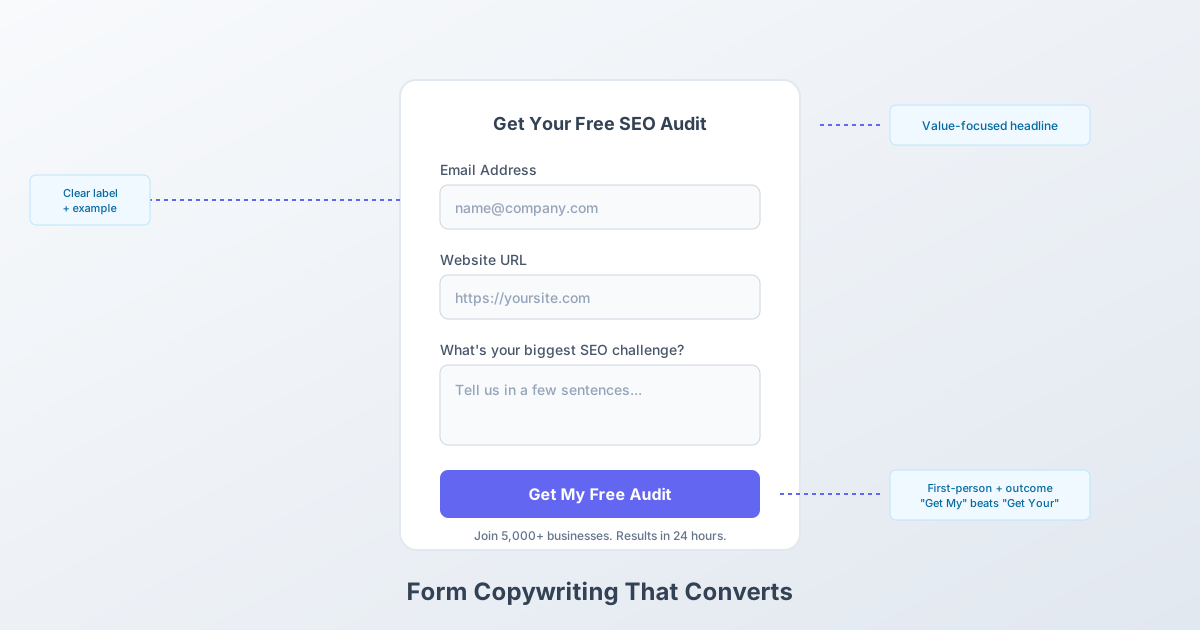
The data: A/B tests consistently show first-person language outperforms second-person.
| Second-Person | First-Person | Lift |
|---|---|---|
| Get Your Report | Get My Report | +90% |
| Start Your Trial | Start My Trial | +25% |
| Create Your Account | Create My Account | +24% |
First-person creates ownership and reduces perceived effort.
Action + Outcome
Great buttons combine action with outcome:
Action only: “Submit,” “Send,” “Continue” Action + Outcome: “Get My Free Guide,” “Start My Trial,” “Send My Message”
The outcome answers “What happens when I click this?”
Avoid Generic Buttons
“Submit” tells users nothing. It’s a command, not an invitation.
Replace generic buttons:
| Instead of… | Try… |
|---|---|
| Submit | Send Message |
| Subscribe | Get Weekly Tips |
| Register | Create Free Account |
| Sign Up | Start Free Trial |
| Continue | See My Results |
Match Button to Context
The button should complete the form’s promise:
Lead magnet form: “Download Free Guide” Contact form: “Send My Message” Newsletter signup: “Get Updates” Trial signup: “Start Free Trial” Appointment booking: “Book My Appointment”
Microcopy: Small Words, Big Impact
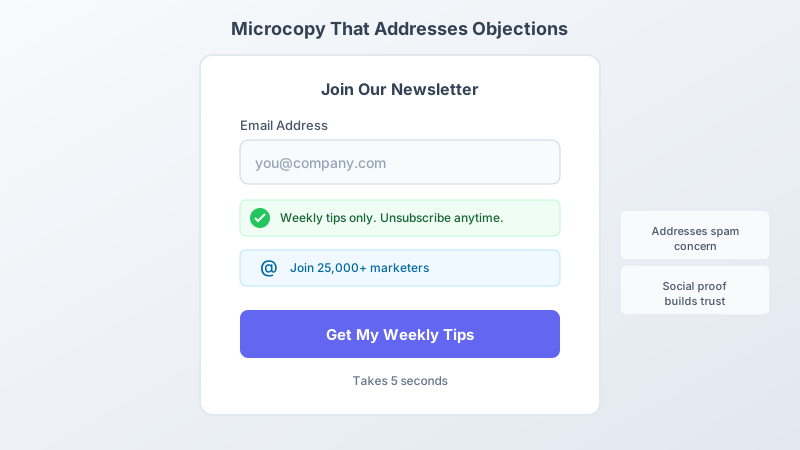
Microcopy is the small text around form elements: helper text, hints, reassurances.
Types of Microcopy
Helper text: Explains what to enter “Enter the email where you’d like to receive updates”
Format hints: Shows expected format “(555) 123-4567”
Reassurances: Addresses concerns “We’ll never share your email”
Encouragement: Motivates completion “Almost there! Just one more step”
Writing Effective Helper Text
Good helper text is:
- Concise (one sentence max)
- Helpful (provides genuinely useful information)
- Positioned correctly (below or beside the field)
- Visible (not hidden in tooltips for essential info)
Examples:
- “Use the email associated with your company domain”
- “Choose a password you’ll remember”
- “Your phone number helps us resolve urgent issues faster”
Reassurance Copy
Address the questions users have but don’t ask:
| User Concern | Reassurance |
|---|---|
| ”Will I get spam?" | "We respect your inbox. Unsubscribe anytime." |
| "Is this really free?" | "Completely free to get started." |
| "How long will this take?" | "Takes about 30 seconds." |
| "Is my data safe?" | "Secured with 256-bit encryption.” |
Place reassurances near the related field or the submit button.
Social Proof Microcopy
Numbers build trust:
- “Join 50,000+ subscribers”
- “Trusted by 10,000 businesses”
- “4.8/5 rating from 2,500 reviews”
Keep it honest and specific.
Error Messages: Helpful, Not Hostile
Error copy can make or break the recovery experience.
The Error Message Formula
Problem + Solution + Example (when helpful)
Bad: “Invalid email” Good: “Please enter a valid email address (e.g., name@company.com)”
Bad: “Error in field” Good: “Phone number should be 10 digits without spaces”
Tone in Error Messages
Avoid accusatory language:
- “You entered the wrong format” -> “Email format not recognized”
- “Your password is weak” -> “Password needs at least 8 characters”
- “You forgot to fill this out” -> “This field is required”
Errors should inform, not blame.
Be Specific
Generic errors frustrate users:
- “Invalid input” (what’s invalid?)
- “Please fix errors” (which errors?)
- “Try again” (try what again?)
Specific errors guide correction:
- “Enter date as MM/DD/YYYY”
- “Password must include at least one number”
- “State name is required for US addresses”
Placeholder Text: Use Carefully
Placeholders appear inside empty fields. They’re often misused.
What Placeholders Should Do
- Show example format: “name@example.com”
- Provide sample input: “Enter your project idea…”
- Demonstrate expected length: “Brief description (2-3 sentences)“
What Placeholders Should NOT Do
- Replace labels (they disappear when typing)
- Contain essential instructions
- Serve as the only guidance
Best practice: Use placeholders as examples, labels for identification, and helper text for instructions.
Form Headings and Introductions
Headlines That Convert
Form headlines should answer: “What do I get?”
Weak headlines:
- “Contact Form”
- “Sign Up”
- “Request Information”
Strong headlines:
- “Get Your Free SEO Audit”
- “Start Your 14-Day Trial”
- “Tell Us About Your Project”
Intro Copy
Brief intro copy can set expectations and reduce anxiety:
“Tell us about your project and we’ll get back to you within 24 hours with a custom quote.”
Keep it to 1-2 sentences. Focus on:
- What users get
- How long it takes
- What happens next
Confirmation and Success Messages
The post-submit experience needs good copy too.
Confirmation Message Elements
- Clear success statement: “Thanks! Your message has been sent.”
- What happens next: “We’ll reply within 24 business hours.”
- Additional actions: “Check your email for a confirmation.”
- Next steps or resources: “While you wait, explore our blog.”
Avoid Dead Ends
Generic confirmations like “Form submitted” leave users uncertain. Always explain the outcome.
Form Copywriting Checklist
Labels
- Clear and unambiguous
- Consistent terminology
- Appropriate length
- No marketing jargon
Buttons
- Action + outcome format
- First-person when appropriate
- Specific to form context
- No generic “Submit”
Microcopy
- Helper text for complex fields
- Format examples where needed
- Reassurances for concerns
- Social proof near form
Error Messages
- Problem + solution format
- Specific guidance
- Helpful tone
- No accusatory language
Overall
- Concise throughout
- Consistent voice
- User-focused language
- Benefit-oriented where appropriate
FAQ
Should form buttons use first-person or second-person language? First-person language (“Get My Report”) typically outperforms second-person (“Get Your Report”) by 25-90% in A/B tests. First-person creates a sense of ownership and makes the action feel more personal. Test both versions with your audience to confirm.
How long should form field labels be? Labels should be as short as possible while remaining clear. “Email Address” works better than “Your Email” or “Please Enter Your Email Address.” Aim for 1-3 words that precisely describe what’s needed without ambiguity.
Where should I place helper text in forms? Place helper text directly below or beside the relevant field. For essential format information, keep it visible at all times rather than hiding it in tooltips. For less critical guidance, a small info icon with hover text works well.
How do I write error messages that don’t frustrate users? Focus on solutions, not blame. Use the formula: state the problem, explain how to fix it, provide an example if helpful. “Email format not recognized. Try name@company.com” beats “Invalid email” every time.
Should placeholders replace field labels? Never. Placeholders disappear when users start typing, forcing them to rely on memory. Use labels above fields for identification and placeholders only for examples or format hints. Essential information should always be in a visible label.
Write Forms That Convert
Form copywriting is often overlooked, but every word influences whether users complete your forms. Clear labels, compelling buttons, helpful microcopy, and kind error messages all contribute to higher conversions.
Pixelform makes great form copy easy:
- Customizable labels and placeholder text
- Flexible button copy options
- Built-in microcopy support
- Error message customization
Create your first form and start writing copy that converts.