Lead Generation Forms: 12 Best Practices That Actually Work
Your lead generation form is the gateway between website visitors and potential customers. A well-optimized form can be your biggest asset; a poorly designed one silently kills conversions.
In this guide, you’ll learn 12 battle-tested best practices for creating lead generation forms that actually convert.
Why Lead Form Optimization Matters
Consider this: a 1% improvement in form conversion rate can mean thousands of additional leads per year. If you’re driving traffic to your site but not optimizing your forms, you’re leaving money on the table.
The average landing page converts at 2.35%. Top performers achieve 5.31% or higher. The difference? Often, it’s the form.
1. Reduce Form Fields to the Essentials
The rule: Every field you add reduces conversions by approximately 10%.
This is the most impactful change you can make. Ask yourself: “Do I absolutely need this information to follow up?”
Essential fields only:
- Name (first name is usually sufficient)
- One qualifying question if needed
Common fields you can probably remove:
- Company name (look it up from their email domain)
- Phone number (unless phone outreach is your primary sales method)
- Address (you don’t need it for digital follow-up)
Case study: HubSpot reduced form fields from 4 to 3 and saw a 50% increase in conversions.
2. Place Forms Above the Fold
Visitors shouldn’t have to scroll to find your form. Place it prominently where it’s immediately visible.
On landing pages, the form should be:
- Visible without scrolling on desktop
- Easy to find on mobile (consider a sticky form or clear CTA to scroll)
- Adjacent to your value proposition
3. Use Inline Validation
Don’t wait until submission to tell users something’s wrong. Inline validation checks fields as users complete them.
Good inline validation:
- Checks email format in real-time
- Shows green checkmarks for valid inputs
- Displays specific error messages next to problem fields
Bad validation:
- Only shows errors after submission
- Clears the entire form on error
- Shows vague messages like “Please fix errors”
Inline validation can improve completion rates by 22%.
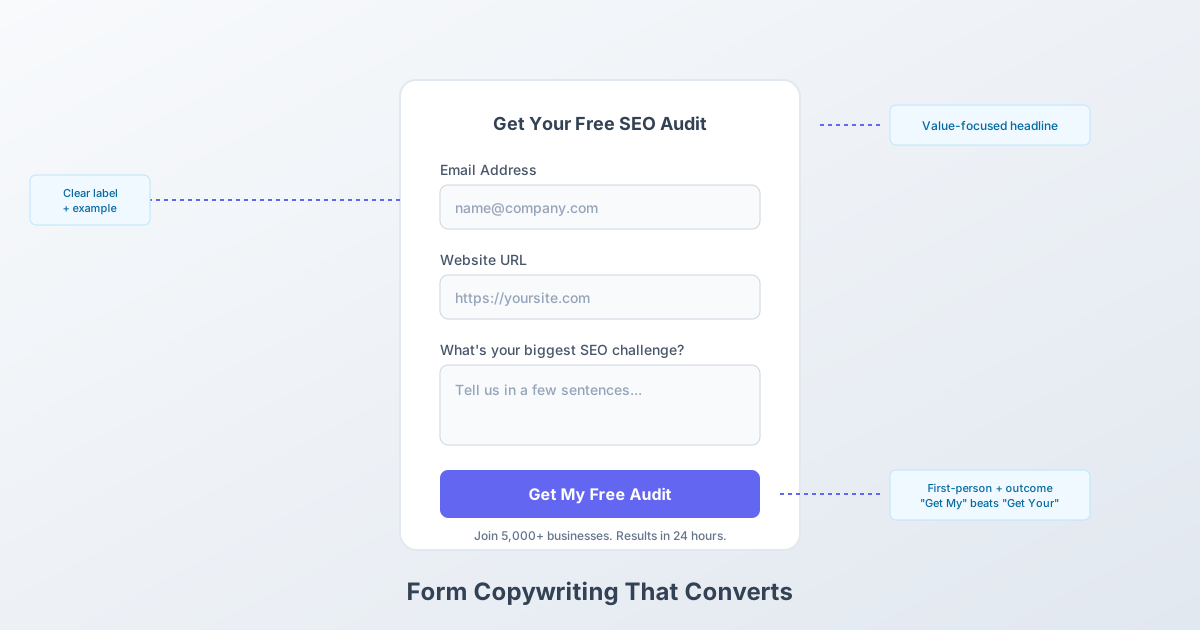
4. Craft a Compelling CTA Button
“Submit” is not a call-to-action. It’s a command that tells users nothing about what happens next.
High-converting button text:
- “Get Your Free Guide” (promises value)
- “Start My Free Trial” (uses “my” for ownership)
- “Request a Demo” (specific action)
- “See Pricing” (answers the user’s question)
Button design tips:
- Use contrasting colors (make it visually pop)
- Make buttons large enough to click easily (44px minimum height)
- Consider adding urgency: “Get Instant Access”
5. Set Clear Expectations
Tell users exactly what happens when they submit the form:
- What will they receive?
- When will they receive it?
- How will you contact them?
Example: “Submit your email and we’ll send you our 2025 Marketing Trends Report within 5 minutes.”
Ambiguity creates hesitation. Specificity builds trust.
6. Add Social Proof Near the Form
Reduce friction by showing others have taken the same action:
- Number of subscribers: “Join 10,000+ marketers”
- Customer logos: Especially for B2B
- Testimonials: Short quotes near the form
- Trust badges: Security certifications, awards
Social proof works because humans look to others when uncertain. If thousands of people have submitted the form, it must be safe.
7. Minimize Distractions
Landing pages with a single conversion goal outperform pages with multiple options.
Remove or minimize:
- Navigation menus
- Sidebar content
- Multiple competing CTAs
- External links
Your form should be the obvious next step, not one of several choices.
8. Use Multi-Step Forms for Longer Questionnaires
If you need more than 3-4 fields, consider breaking your form into multiple steps.
Why multi-step forms work:
- Lower perceived effort (each step looks easy)
- Commitment and consistency (once started, people finish)
- Progress indicators show advancement
- Questions can be grouped logically
Best practices:
- Put easy questions first
- Show clear progress
- Keep each step focused
- Allow back navigation
Multi-step forms can increase conversions by 300% compared to single long forms.
9. Optimize for Mobile Users
More than 60% of traffic is mobile. Your form must work flawlessly on phones.
Mobile optimization checklist:
- ☐ Single-column layout
- ☐ Large input fields (at least 44px height)
- ☐ Appropriate keyboard types (email keyboard for email fields)
- ☐ No horizontal scrolling
- ☐ Touch-friendly buttons
- ☐ Autofill support
Test on actual devices. What works in a browser simulator often fails on real phones.
10. Address Objections Directly
Put yourself in the visitor’s shoes. What concerns might prevent them from submitting?
Common objections and solutions:
| Objection | Solution |
|---|---|
| ”Will I get spammed?" | "We respect your inbox. Unsubscribe anytime." |
| "Is my data safe?” | Add privacy link, security badges |
| ”Is this really free?" | "Yes, completely free to get started" |
| "How long will this take?" | "Takes 30 seconds to complete” |
Answer objections before they’re asked.
11. A/B Test Everything
Don’t guess what works. Test it.
Elements to A/B test:
- Number of form fields
- Button color and text
- Form headline
- Field labels vs. placeholder text
- Single-step vs. multi-step
How to run valid tests:
- Change one element at a time
- Run tests until statistically significant
- Test on actual traffic, not internal users
Even small improvements compound over time.
12. Follow Up Immediately
What happens after form submission is part of the form experience.
Post-submission best practices:
- Show a clear confirmation message
- Deliver promised content instantly
- Send a confirmation email within seconds
- Set expectations for next steps
A 5-minute delay in following up with leads decreases qualification rates by 80%. Speed matters.
Bonus: Form Placement Strategies
Where your form appears matters as much as how it looks:
Landing pages: Above the fold, prominently displayed
Blog posts: End of article, contextual inline forms
Homepage: In the hero section or as a dedicated section
Exit intent: Pop-up forms when users try to leave
Sticky forms: Fixed position on longer pages
Each placement has different conversion rates. Test to find what works for your audience.
Measuring Lead Form Performance
Track these metrics to understand your form’s effectiveness:
- Conversion rate: Submissions ÷ Visitors
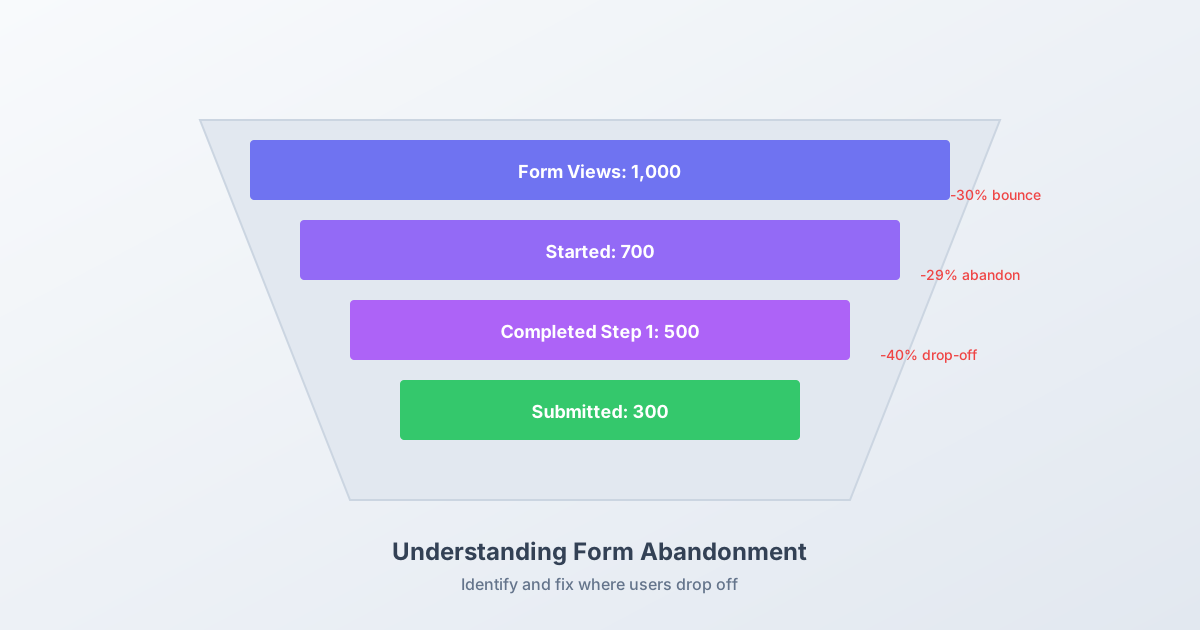
- Completion rate: Submissions ÷ Form starts
- Field drop-off: Which fields cause abandonment
- Time to complete: How long users spend on your form
- Lead quality: Do form leads become customers?
Implementing These Practices
You don’t need to rebuild from scratch. Start with:
- Audit current forms — Identify quick wins
- Remove one field — The easiest improvement
- Rewrite your CTA — Make it value-focused
- Add mobile testing — Find device-specific issues
- Implement inline validation — Reduce frustration
Small changes compound into significant improvements.
Ready to Build Better Lead Forms?
Pixelform makes it easy to create high-converting lead generation forms with built-in best practices:
- Drag-and-drop form building
- Multi-step form support
- Inline validation included
- Mobile-responsive by default
- Analytics to track performance
Create your first lead form free and start converting more visitors into leads.