Form Integrations with Zapier: Automate Your Workflows in 2025
Key Takeaways
- Zapier connects your forms to over 8,000 apps, enabling automation without coding
- Businesses using Zapier report 72% reduction in manual data entry errors and 65% improved team productivity
- Multi-step Zaps can chain multiple actions together, like adding leads to CRM + subscribing to email lists + sending Slack notifications
- Proper field mapping and filters ensure clean data flows between your form and destination apps
- Regular monitoring and clear naming conventions keep your automations running smoothly
Manual data entry from form submissions is tedious, error-prone, and wastes valuable time. Every minute spent copying data from a form to your CRM, spreadsheet, or email platform is a minute not spent on higher-value work.
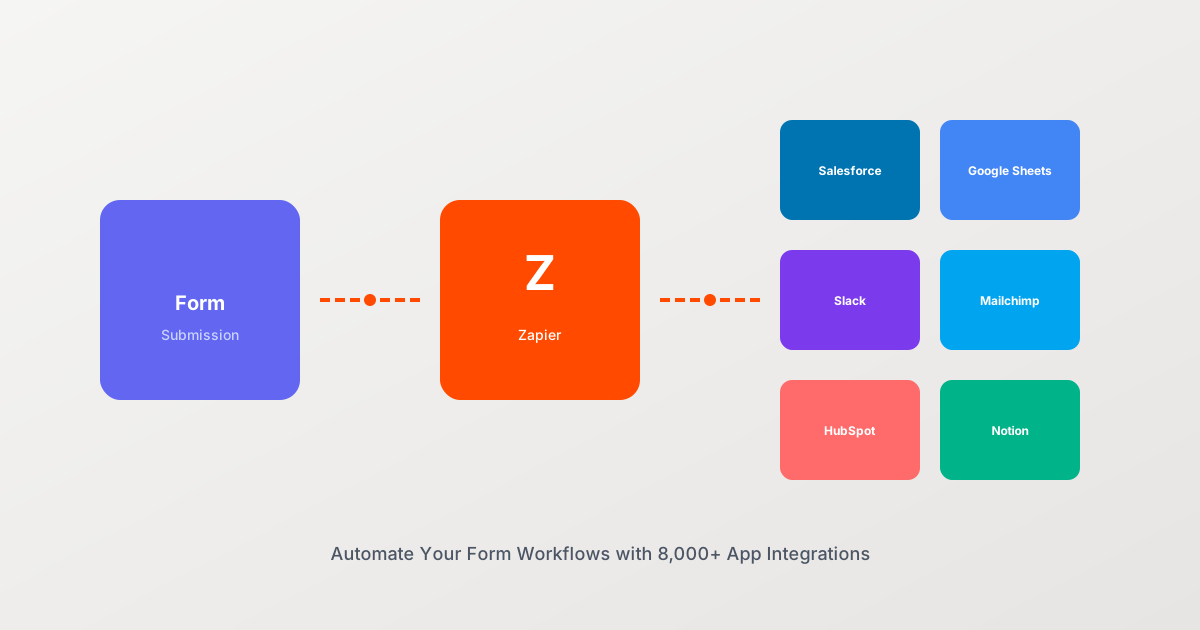
Zapier eliminates this problem by automatically connecting your forms to the tools you already use. When someone submits a form, Zapier can instantly add them to your CRM, subscribe them to an email list, create a support ticket, notify your team on Slack, and more, all without you lifting a finger.
This comprehensive guide will show you how to set up powerful form automations using Zapier, from basic single-action Zaps to complex multi-step workflows.
What is Zapier and How Does It Work?
Zapier is an automation platform that connects different web applications. It acts as a bridge between tools that don’t natively integrate with each other.
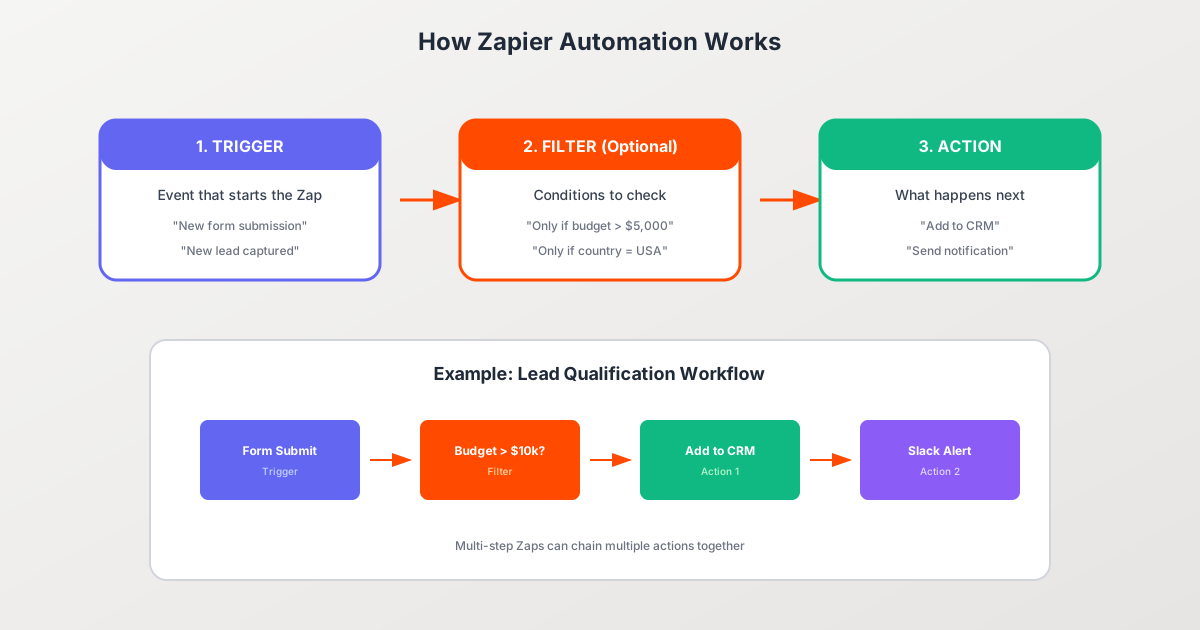
The core concept is simple:
Trigger + Action = Automation
- Trigger: An event that starts the automation (e.g., “new form submission”)
- Action: What happens as a result (e.g., “add contact to HubSpot”)
These automated workflows are called “Zaps.”
Why Zapier for Form Integrations?
Zapier connects with over 8,000 applications, making it the most versatile integration platform available. For form builders, this means:
- Universal connectivity: Connect to virtually any tool in your tech stack
- No coding required: Build automations with a visual interface
- Reliable execution: Zapier handles retries, error handling, and monitoring
- Scalable: From simple single-action Zaps to complex multi-step workflows
According to a 2023 survey, 72% of businesses using Zapier reported significant reduction in manual data entry errors, while 65% noted improved team productivity.
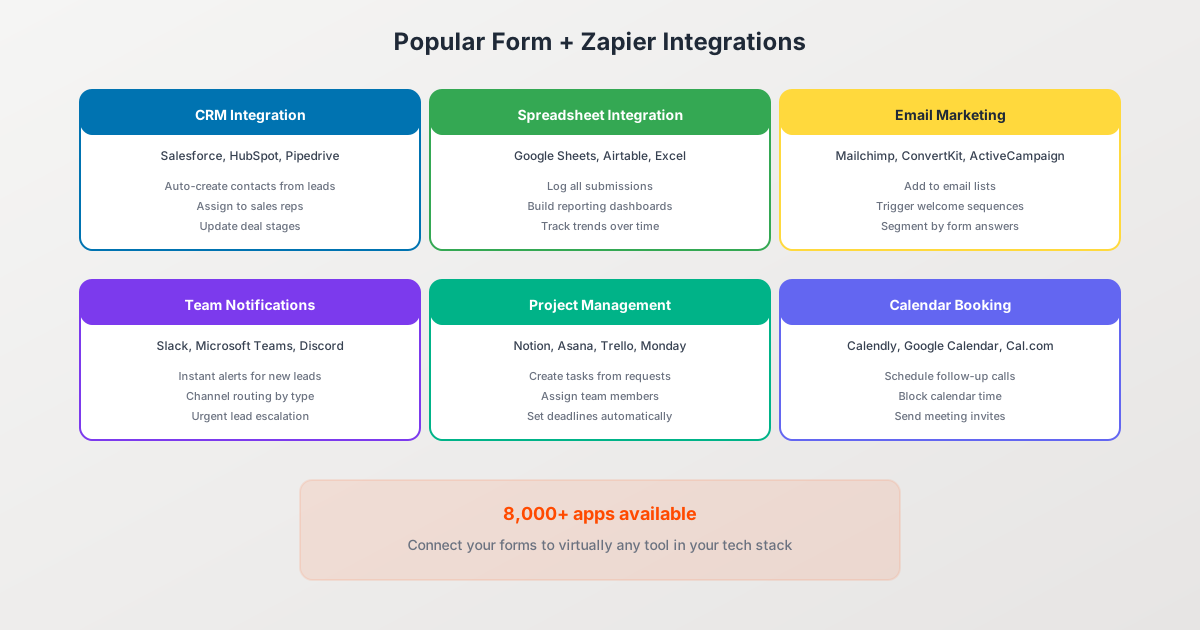
Popular Form + Zapier Integration Categories
Before diving into setup, let’s explore the most common ways businesses connect their forms to other tools.
CRM Integration
Popular apps: Salesforce, HubSpot, Pipedrive, Zoho CRM
Common workflows:
- Automatically create new contacts from lead forms
- Update existing contact records with new information
- Assign leads to sales reps based on form answers
- Update deal stages when forms are submitted
Example: A contact form submission creates a new lead in Salesforce, assigns it to the appropriate sales rep based on territory (from ZIP code), and creates a follow-up task.
Spreadsheet Integration
Popular apps: Google Sheets, Airtable, Microsoft Excel, Smartsheet
Common workflows:
- Log all form submissions for reporting
- Build real-time dashboards from form data
- Track trends and patterns over time
- Create backup records of all submissions
Example: Every survey response is logged to Google Sheets with timestamp, enabling trend analysis and team-wide visibility.
Email Marketing Integration
Popular apps: Mailchimp, ConvertKit, ActiveCampaign, Klaviyo
Common workflows:
- Add subscribers to email lists
- Trigger welcome email sequences
- Segment contacts based on form answers
- Update subscriber tags and preferences
Example: Newsletter signup form adds contact to Mailchimp, applies tags based on selected interests, and triggers a 5-email welcome sequence.
Team Notification Integration
Popular apps: Slack, Microsoft Teams, Discord, Email
Common workflows:
- Instant alerts for new leads or urgent requests
- Route notifications to specific channels by type
- Escalate high-priority submissions
- Daily/weekly digest summaries
Example: High-value lead form (budget > $10k) triggers immediate Slack notification to the sales channel with full details.
Project Management Integration
Popular apps: Notion, Asana, Trello, Monday.com, ClickUp
Common workflows:
- Create tasks from request forms
- Add items to project databases
- Assign team members automatically
- Set deadlines based on urgency
Example: Bug report form creates a Trello card in the appropriate board, assigns to the on-call developer, and sets due date based on severity.
Calendar Integration
Popular apps: Google Calendar, Calendly, Cal.com, Outlook
Common workflows:
- Schedule follow-up appointments
- Block team calendar time
- Send meeting invites automatically
- Sync event registrations
Example: Demo request form triggers Calendly link email, and once booked, creates Google Calendar event with prospect details.
Setting Up Your First Zapier Form Integration
Let’s walk through creating a Zap step by step.

Prerequisites
- Zapier account: Free tier available, paid plans for more Zaps and features
- Form builder account: Pixelform (connects via webhooks), or any form tool with Zapier integration
- Destination app account: Whatever app you want to connect (CRM, spreadsheet, etc.)
Step 1: Create a New Zap
- Log into Zapier and click “Create Zap” (or use Zapier Copilot with natural language)
- You’ll see two sections: Trigger (left) and Action (right)
Step 2: Set Up Your Trigger
- Search for your form app (e.g., “Pixelform”)
- Select trigger event: Usually “New Form Submission” or “New Entry”
- Connect your account: Authorize Zapier to access your form data
- Select specific form: Choose which form should trigger this Zap
Step 3: Test the Trigger
- Click “Test trigger”
- Zapier will pull recent submissions from your form
- Select a sample submission to use for testing
- Verify the data looks correct (field names, values)
Pro tip: Submit a test entry to your form before this step so Zapier has sample data to pull.
Step 4: Set Up Your Action
- Search for destination app (e.g., “Google Sheets”)
- Select action event: What should happen (e.g., “Create Spreadsheet Row”)
- Connect your account: Authorize Zapier to access the destination app
- Configure the action: This is where field mapping happens
Step 5: Map Your Fields
This is the most important step. You’re telling Zapier which form fields should go where in the destination app.
Example mapping for Google Sheets:
| Form Field | Maps To |
|---|---|
| Full Name | Column A |
| Email Address | Column B |
| Phone Number | Column C |
| Message | Column D |
| Submission Date | Column E |
Click into each destination field and select the corresponding form field from the dropdown.
Step 6: Test and Publish
- Click “Test action” to send sample data to your destination app
- Verify the record was created correctly
- Click “Publish” to activate your Zap
- Submit a real form entry to confirm everything works
Building Advanced Multi-Step Workflows
Single-action Zaps are useful, but the real power comes from chaining multiple actions together.

Example: Complete Lead Nurture Workflow
Trigger: New lead form submission
Action 1: Create contact in HubSpot CRM
- Map name, email, phone, company
- Set lead source as “Website Form”
- Assign to sales rep based on territory
Action 2: Add to Mailchimp email list
- Subscribe to “New Leads” list
- Apply tags based on form answers (interest, budget)
- Trigger welcome email automation
Action 3: Send Slack notification
- Post to #sales-leads channel
- Include key details: name, company, budget
- Add link to CRM record
Action 4: Create Google Sheets log
- Append row with all form data
- Include timestamp for reporting
This entire workflow executes automatically every time someone submits your lead form, typically within seconds.
Using Filters and Paths
Not every submission should trigger every action. Filters let you set conditions.
Example Filter: Only notify sales for high-value leads
If Budget field > $10,000
  Then: Send Slack notification
  Else: Skip this action
Paths let you branch your workflow based on conditions:
If Lead Type = "Enterprise"
  Path A: Assign to enterprise team, send premium welcome email
If Lead Type = "Small Business"
  Path B: Assign to SMB team, send standard welcome email
Delays and Schedulers
Sometimes you don’t want actions to happen immediately.
Delay examples:
- Wait 24 hours, then send follow-up email if no response
- Wait 1 hour, then create follow-up task for sales rep
- Wait until business hours, then send Slack notification
Best Practices for Zapier Form Automation
Follow these guidelines to build reliable, maintainable automations.

Naming Conventions
Clear names save time when troubleshooting:
Good naming:
- “Contact Form to HubSpot + Slack #sales”
- “Support Request to Zendesk + Email Confirmation”
- “Newsletter Signup to Mailchimp (Main List)”
Bad naming:
- “New Zap”
- “My Zap”
- “Form thing”
Use Filters Strategically
Filters prevent unnecessary actions and reduce task usage:
- Filter out test submissions (e.g., emails containing “test”)
- Only process submissions from specific sources
- Route based on priority or category
- Prevent duplicate records
Test Before Publishing
Always test with sample data before activating:
- Use Zapier’s built-in test feature
- Submit real test entries to your form
- Verify data appears correctly in destination
- Check for edge cases (special characters, empty fields)
Monitor Your Zaps
Regular monitoring catches issues before they become problems:
- Check Zap history weekly for failed tasks
- Set up error notifications via email or Slack
- Review task usage against your plan limits
- Audit inactive Zaps periodically
Security Considerations
Protect your data and comply with regulations:
- Access control: Limit who can create/edit Zaps
- Data handling: Follow GDPR/CCPA guidelines for form data
- Connection security: Review authorized apps regularly
- Sensitive data: Avoid passing passwords or payment info through Zaps
Troubleshooting Common Issues
Even well-designed Zaps occasionally fail. Here’s how to diagnose and fix common problems.
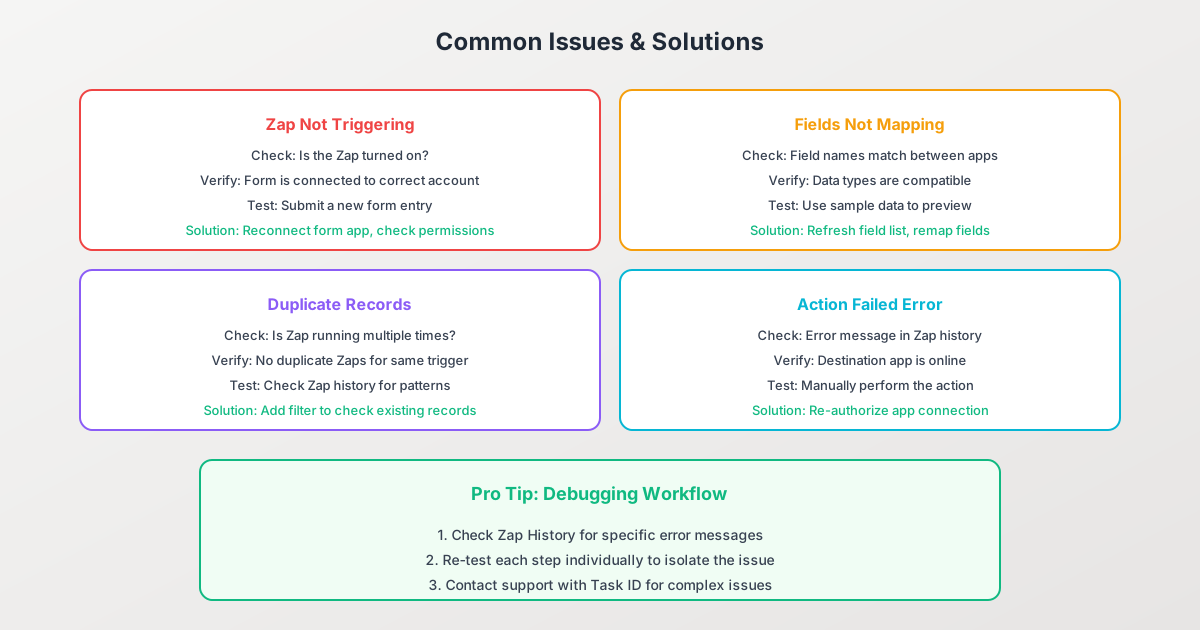
Zap Not Triggering
Symptoms: Form submitted but Zap didn’t run
Checklist:
- Is the Zap turned on? (Check the toggle)
- Is the correct form selected in the trigger?
- Is your form app connected and authorized?
- Has the Zap been triggered recently? (Check history)
Solutions:
- Reconnect your form app account
- Re-select the specific form in the trigger
- Check if your Zapier plan has task limits
Fields Not Mapping Correctly
Symptoms: Data appears in wrong fields or is missing
Checklist:
- Did form field names change since Zap was created?
- Are data types compatible? (Text to text, number to number)
- Are required fields in the destination being filled?
Solutions:
- Refresh field list in Zapier (click refresh icon)
- Re-map fields from scratch
- Check for special characters causing issues
Duplicate Records Created
Symptoms: Same submission creates multiple records
Checklist:
- Are multiple Zaps triggered by the same form?
- Is the Zap running multiple times per submission?
- Check Zap history for duplicate runs
Solutions:
- Consolidate duplicate Zaps
- Add filter to check for existing records before creating
- Use “Find or Create” action instead of just “Create”
Action Failed Errors
Symptoms: Trigger works but action fails
Checklist:
- What specific error message appears?
- Is the destination app online and accessible?
- Are required fields being provided?
- Is your destination app account connected?
Solutions:
- Re-authorize the destination app connection
- Check destination app’s API status
- Verify required fields are mapped
- Review error details in Zap history
Measuring Automation ROI
Quantify the value of your Zapier automations:
Time Savings
Calculate time saved per automation:
Manual process time: 5 minutes per submission
Monthly submissions: 200
Time saved: 200 x 5 = 1,000 minutes = 16.7 hours/month
Error Reduction
Compare error rates before and after automation:
- Manual entry error rate: ~3-5%
- Automated entry error rate: <0.1%
- For 200 monthly submissions: 6-10 fewer errors
Response Speed
Measure time from form submission to action:
- Manual: Hours to days (depends on when someone checks)
- Automated: Seconds to minutes
Connecting Pixelform to Zapier via Webhooks
Pixelform uses webhooks to connect with Zapier, enabling powerful automations for all your forms.
How It Works
Pixelform sends form submission data to a webhook URL. In Zapier, you use a “Webhooks by Zapier” catch hook to receive this data, then build automation workflows from there.
Setting Up Pixelform + Zapier
- In Zapier, create a new Zap and choose “Webhooks by Zapier” as the trigger
- Select “Catch Hook” as the trigger event
- Copy the webhook URL that Zapier generates
- In Pixelform, add this URL to your form’s webhook settings
- Test with a submission to capture sample data
- Build your automation workflow
Popular Webhook Automations
- Lead form to HubSpot + Slack: Capture leads and notify sales instantly
- Contact form to Google Sheets + Email: Log submissions and send confirmations
- Survey to Airtable: Build a response database for analysis
- Registration form to Notion: Track signups in a database
FAQ
How much does Zapier cost for form automation?
Zapier offers a free tier with 100 tasks per month and basic features. Paid plans start at $19.99/month for more tasks, multi-step Zaps, and premium apps. For most small businesses, the Starter or Professional plan ($49/month) provides sufficient task volume and features.
Can I use Zapier with any form builder?
Most major form builders integrate with Zapier, including Typeform, Google Forms, JotForm, and many others. Check Zapier’s app directory for your specific form tool. Pixelform uses webhooks, which connect to Zapier through the “Webhooks by Zapier” trigger - this approach works with any form tool that supports webhooks.
How fast do Zapier automations run?
For most Zapier plans, Zaps check for new triggers every 1-15 minutes. On higher-tier plans, you can enable instant triggers that execute within seconds of a form submission. For time-sensitive workflows, instant triggers are recommended.
What happens if a Zap fails?
Zapier will attempt to retry failed tasks automatically. You’ll receive an email notification about the failure. Failed tasks appear in your Zap history where you can review the error, fix the issue, and replay the task. For critical workflows, set up Slack or email alerts for immediate failure notification.
Can I automate based on specific form answers?
Yes, using Filters and Paths. Filters let you set conditions like “only run if budget > $5,000” or “skip if country = UK.” Paths let you branch your workflow, running different actions based on form responses. This enables sophisticated routing and personalization.
How do I prevent duplicate records in my CRM?
Use Zapier’s “Find or Create” actions instead of just “Create.” This searches for an existing record (usually by email) before creating a new one. If found, it updates the existing record instead of creating a duplicate. You can also use filters to check for existing records before the create action.
Ready to automate your form workflows? Build your forms with Pixelform and connect them to 8,000+ apps using webhooks with Zapier.