How to Create an Online Form: Step-by-Step Guide for Beginners
Key Takeaways
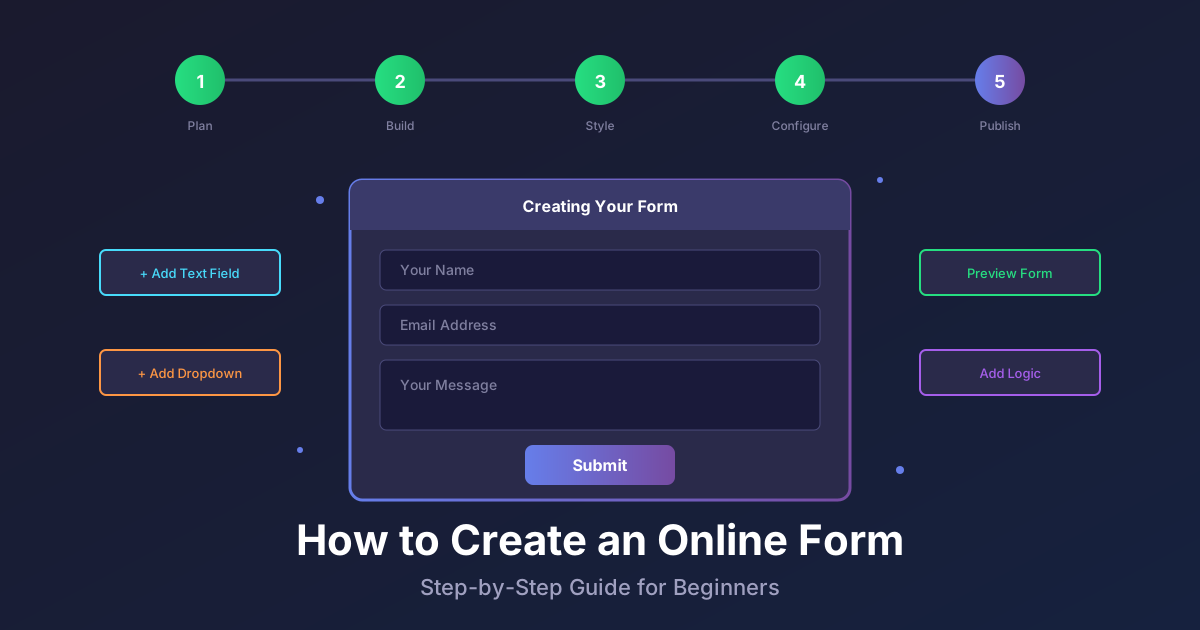
- Creating an online form takes just 5 steps: plan, build, customize, configure, and publish
- No coding skills are required when using a modern form builder
- The entire process can be completed in under 10 minutes for simple forms
- Planning your form before building leads to better conversion rates
- Testing your form before publishing prevents embarrassing errors
“How do I create an online form?” is one of the most common questions people ask when they need to collect information online. The good news is that creating professional online forms has never been easier. This comprehensive guide walks you through every step of the process.
Whether you want to create a contact form for your website, a survey for customer feedback, or a registration form for an event, this tutorial will show you exactly how to do it.
What You Need to Create an Online Form
Before diving into the steps, here is what you need:
- A form builder tool (free or paid)
- A clear idea of what information you want to collect
- About 10-30 minutes depending on form complexity
- Optionally, a website where you want to embed the form
You do not need:
- Coding knowledge
- Design skills
- Technical expertise
- A web developer
With those basics covered, let us create your first online form.
Step 1: Plan Your Form
The most important step happens before you open any software. Taking a few minutes to plan your form dramatically improves results.
Define Your Form’s Purpose
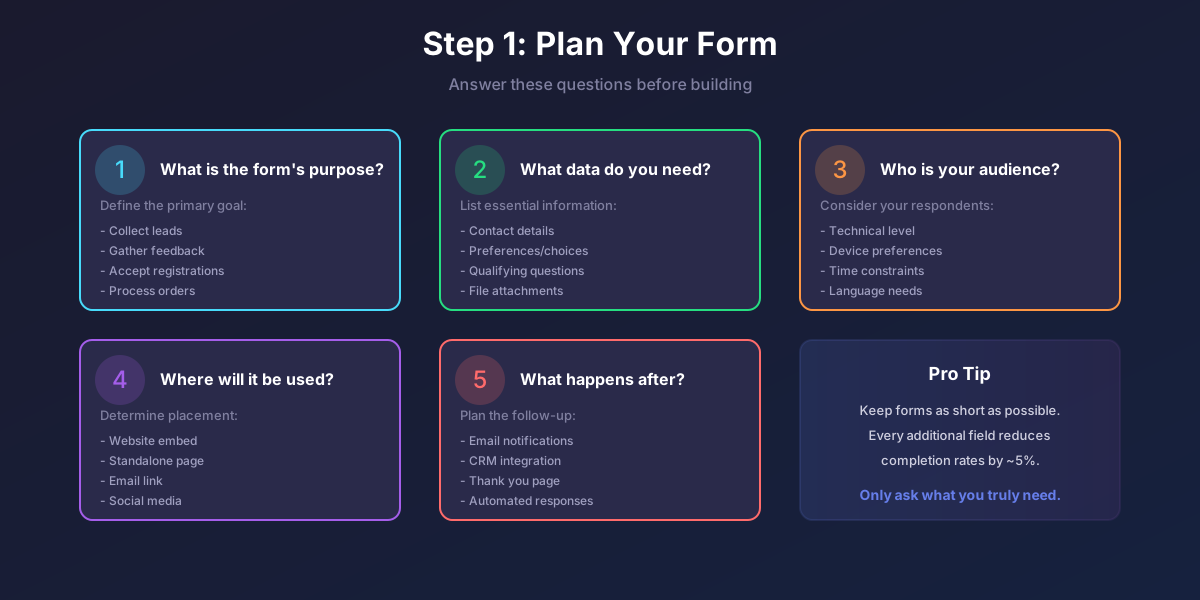
Ask yourself: what exactly do I want to achieve with this form? Common purposes include:
- Lead generation: Capturing potential customer information
- Contact requests: Letting visitors send messages
- Registrations: Signing up users for events or services
- Surveys: Gathering feedback or opinions
- Orders: Collecting purchase information
- Applications: Receiving job or membership applications
A clear purpose guides every other decision you make about your form.
Determine What Data You Need
List every piece of information you want to collect. Then ruthlessly eliminate anything that is not essential. Studies show that each additional form field reduces completion rates by approximately 5%.
Ask yourself for each field:
- Do I actually need this information?
- Will I use this data?
- Can I get this information later?
For example, if you are creating a newsletter signup form, you probably only need an email address. Asking for name, phone, company, and address will drastically reduce signups.
Consider Your Audience
Think about who will fill out your form:
- What devices will they use? (Mobile is now over 50% of traffic)
- How much time do they have?
- What is their technical comfort level?
- Do they need the form in multiple languages?
Plan the User Flow
Consider what happens after someone submits your form:
- What confirmation message should they see?
- Should they receive an email confirmation?
- Where should the data go? (Email, spreadsheet, CRM)
- Who needs to be notified of new submissions?
Step 2: Build Your Form
With planning complete, it is time to start building. This is where form builders make everything easy.
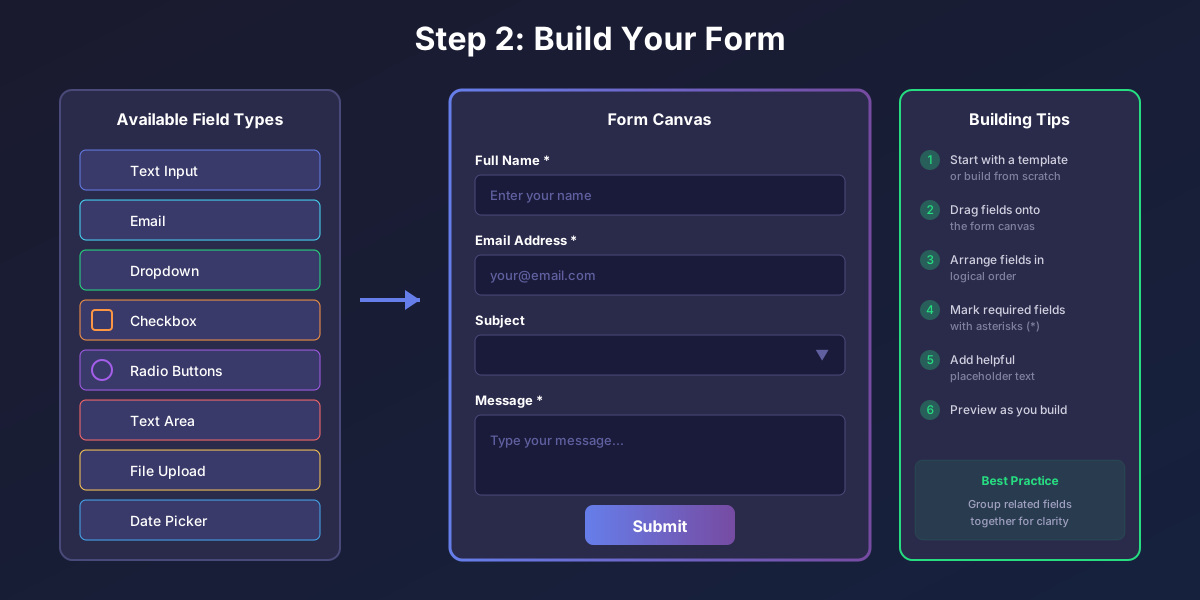
Choose a Form Builder
If you do not already have a form builder, select one that fits your needs. Popular options include:
- Google Forms: Free and simple, great for basic forms
- Typeform: Beautiful conversational forms
- Jotform: Feature-rich with many templates
- Pixelform: Modern, fast, and developer-friendly
- Tally: Simple and generous free tier
For this guide, we will use general instructions that apply to any form builder.
Start with a Template or Blank Form
Most form builders offer two starting options:
Templates provide pre-built forms for common use cases. Select a template that matches your purpose and customize it. This is often the fastest approach.
Blank forms give you complete control. Start from scratch and add exactly the fields you need.
Add Your Form Fields
Drag fields from the field library onto your form canvas. Common field types include:
Text Input: For short text like names, emails, or single-line answers.
Text Area: For longer responses like messages or comments.
Email: Specifically formatted for email addresses with automatic validation.
Phone Number: For phone numbers with format checking.
Dropdown: When users must select one option from a list.
Radio Buttons: Similar to dropdown but options are visible. Best for 2-5 choices.
Checkboxes: When users can select multiple options.
Date Picker: For selecting dates from a calendar.
File Upload: When users need to attach documents or images.
Rating Scale: For satisfaction scores or ratings.
Configure Each Field
For each field, set the following:
Label: The text shown above the field. Make it clear and descriptive. “Email” is better than “E-mail Address (required for newsletter).”
Placeholder text: Example text shown inside the field before the user types. Use this to clarify what format you expect.
Required status: Mark fields as required when you absolutely need the information. Do not make optional fields required.
Help text: Additional guidance shown below the field if needed.
Arrange Fields Logically
Order your fields in a way that makes sense to users:
- Start with easy fields (name, email) to build momentum
- Group related questions together
- Put sensitive questions (like budget or phone) later
- End with the submit button
Step 3: Customize Your Form’s Appearance
A professional-looking form builds trust and increases completions.
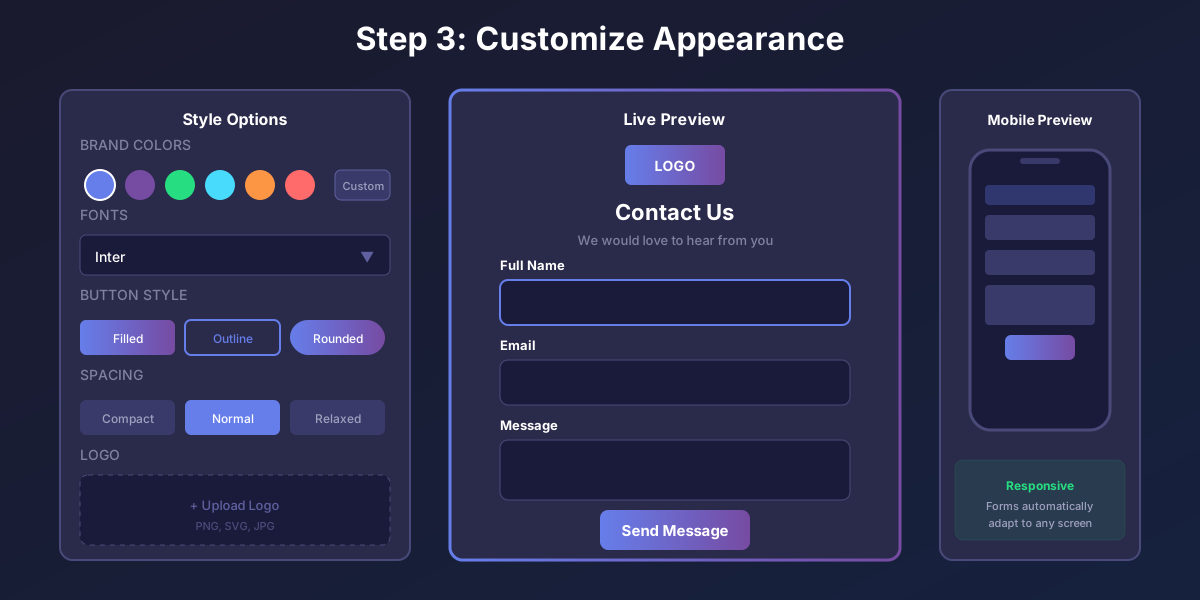
Match Your Brand Colors
Most form builders let you customize:
- Primary color (used for buttons and accents)
- Background color
- Text color
- Border colors
Choose colors that match your website or brand guidelines. If you embed the form on your site, it should look like a natural part of the page.
Select Appropriate Fonts
If your form builder supports font customization, choose fonts that:
- Are easy to read
- Match your brand
- Work well on all devices
System fonts (like Arial or Helvetica) are safe choices that load quickly.
Add Your Logo
Including your logo at the top of the form builds recognition and trust. Most form builders support image uploads for branding.
Choose a Layout Style
Form builders typically offer layout options:
- Single column: Fields stacked vertically. Best for most forms.
- Multi-column: Side-by-side fields. Use sparingly, mainly for related short fields like first name and last name.
Single column layouts perform better on mobile devices and are easier to complete.
Preview on Multiple Devices
Always preview your form on:
- Desktop computer
- Tablet
- Mobile phone
Most form builders show responsive previews. Make sure your form looks good and functions well on all screen sizes.
Step 4: Configure Form Settings
Behind the visual design, settings control how your form behaves.
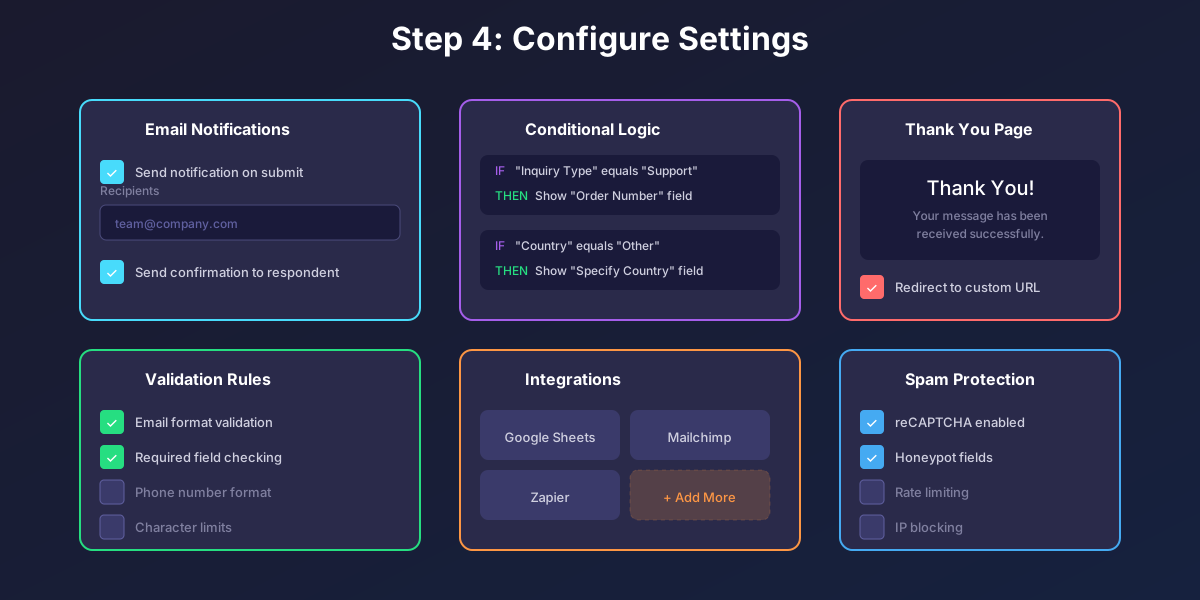
Set Up Email Notifications
Configure who receives email notifications when someone submits the form:
- Add email addresses for your team members
- Customize what information appears in notification emails
- Set up auto-responders to confirm receipt to the person who submitted
Configure Validation Rules
Validation ensures you receive quality data:
Email validation: Checks that email addresses are properly formatted.
Required fields: Prevents submission until all required fields are completed.
Character limits: Sets minimum or maximum lengths for text responses.
Number ranges: Ensures numeric values fall within expected ranges.
Pattern matching: Validates specific formats like phone numbers or postal codes.
Add Conditional Logic
Conditional logic makes forms smarter by showing or hiding fields based on answers:
Example: “If ‘How did you hear about us?’ equals ‘Other’, then show ‘Please specify’ field.”
This creates shorter, more relevant forms for each user.
Connect Integrations
Connect your form to other tools you use:
Email marketing: Send new contacts to Mailchimp, ConvertKit, or similar tools.
CRM: Push leads directly into Salesforce, HubSpot, or other CRMs.
Spreadsheets: Automatically add responses to Google Sheets or Excel.
Automation: Use Zapier or Make to trigger workflows.
Configure the Thank You Page
What happens after someone submits? Options include:
Thank you message: Display a confirmation message on the same page.
Redirect: Send users to a different page (like a thank you page on your website).
Show summary: Display what the user submitted.
Enable Spam Protection
Protect your form from spam submissions:
reCAPTCHA: Google’s spam prevention that asks users to prove they are human.
Honeypot fields: Hidden fields that trap bots (they fill out everything, including hidden fields).
Rate limiting: Prevents rapid submissions from the same source.
Step 5: Publish and Share Your Form
Your form is built, styled, and configured. Time to make it live.
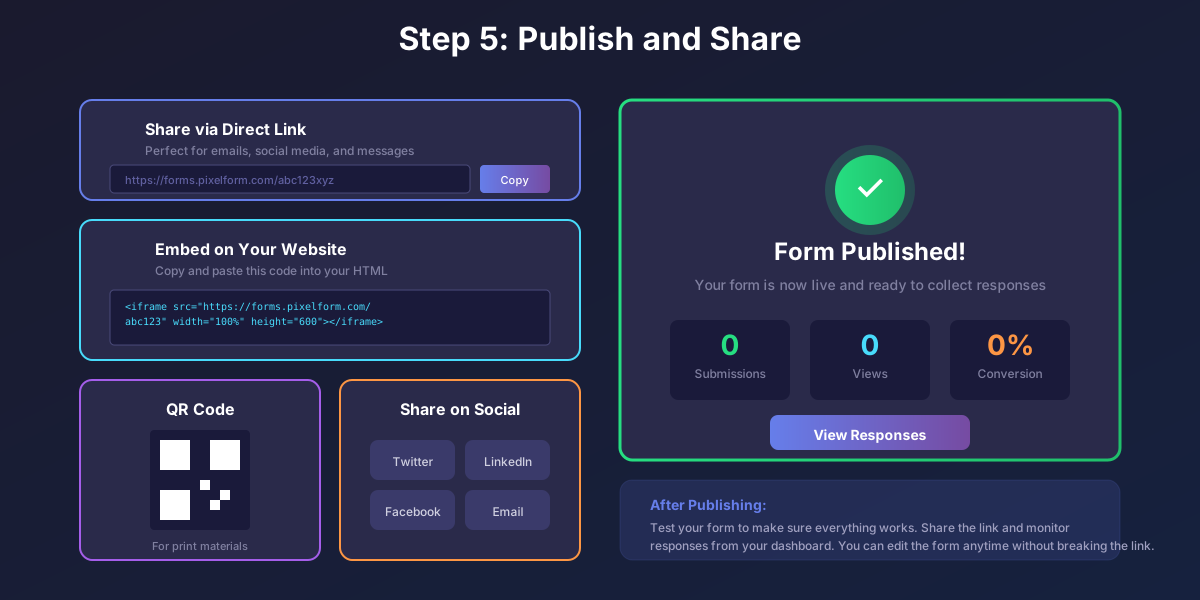
Publish Your Form
Click the publish button in your form builder. Your form is now live and accessible.
Get Your Form Link
Every published form receives a unique URL. You can share this link:
- In emails
- On social media
- In messages
- Anywhere you can paste a link
Embed on Your Website
To display your form directly on your website:
- Copy the embed code from your form builder
- Paste it into your website’s HTML where you want the form to appear
- Save and publish your website changes
Most form builders provide embed codes in multiple formats:
- iFrame: Works everywhere, simple to implement
- JavaScript: More flexible, better integration
- Direct HTML: For advanced users who want complete control
Generate a QR Code
Many form builders can generate QR codes for your form. These are perfect for:
- Print materials (flyers, posters, business cards)
- Physical locations (storefronts, events)
- Product packaging
Test Your Published Form
Before promoting your form widely:
- Open the published form URL
- Fill out the form completely
- Submit a test response
- Verify you receive notifications
- Check that integrations work
- Review the thank you page
Test on both desktop and mobile devices.
Form Creation Best Practices
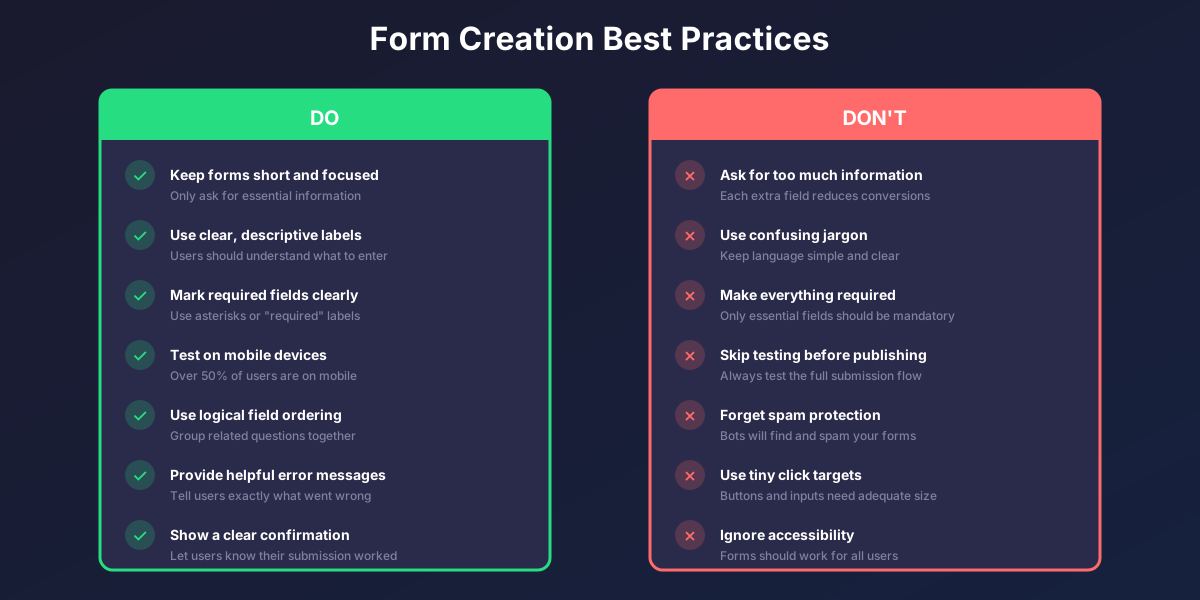
Follow these guidelines for higher completion rates.
Keep Forms Short
The golden rule: ask for only what you truly need. Every additional field is friction that reduces completions.
If you must collect lots of information:
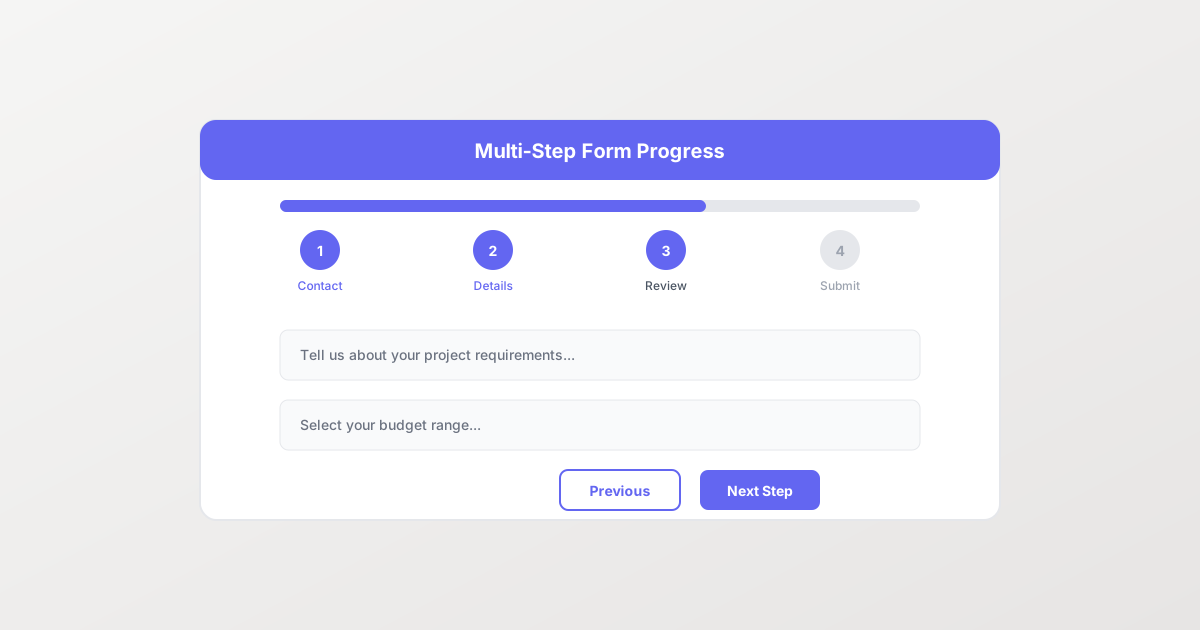
- Break it into multiple pages
- Use progress indicators
- Save partial submissions
Write Clear Labels
Users should instantly understand what each field asks for. Avoid:
- Ambiguous labels
- Technical jargon
- Abbreviations
Good: “Phone Number” Bad: “Primary Contact Tel. (Optional but preferred)“
Use Appropriate Field Types
Match the field type to the expected input:
- Use email fields for emails (auto-validation, correct mobile keyboard)
- Use number fields for numeric input
- Use dropdowns for long lists of options
- Use radio buttons for short lists where seeing all options helps
Provide Helpful Error Messages
When validation fails, tell users exactly what went wrong and how to fix it.
Good: “Please enter a valid email address (example: name@company.com)” Bad: “Invalid input”
Optimize for Mobile
More than half of form submissions come from mobile devices. Ensure:
- Fields are large enough to tap easily
- Text is readable without zooming
- Forms do not require horizontal scrolling
- Keyboards match field types (email keyboard for email fields)
Build Trust with Privacy Information
If collecting sensitive data, add:
- A brief privacy statement
- Link to your privacy policy
- Explanation of how data will be used
- Any compliance information (GDPR, etc.)
Common Questions About Creating Forms
How long does it take to create an online form?
Simple forms like contact forms or newsletter signups take 5-10 minutes. More complex forms with conditional logic, multiple pages, or many integrations might take 30 minutes to an hour. No form should take more than a few hours unless it has highly specialized requirements.
Do I need to know how to code?
No. Modern form builders are designed for non-technical users. You build forms by dragging and dropping fields, not writing code. If you can use a word processor or presentation software, you can create forms.
Can I create forms for free?
Yes. Google Forms is completely free with no limitations. Other form builders like Tally and Jotform offer free tiers with limitations. Pixelform offers paid plans starting at $29/month with all features included. Free plans typically limit the number of forms or submissions per month.
How do I add a form to my website?
Form builders provide embed codes that you paste into your website’s HTML. If you use a website builder like WordPress, Squarespace, or Wix, they often have specific integrations or blocks for embedding forms. The exact method depends on your website platform.
Can I collect payments through a form?
Yes, many form builders integrate with payment processors like Stripe, PayPal, and Square. You can add product selection fields and collect payment information securely. Payment features are typically available on paid plans.
How do I prevent spam submissions?
Enable spam protection features in your form builder. Most support reCAPTCHA (Google’s “I’m not a robot” checkbox), honeypot fields (hidden fields that catch bots), and rate limiting. For public forms, always enable at least one spam protection method.
Can multiple people access form responses?
Yes. Most form builders support team collaboration. You can invite team members to view submissions, receive notifications, and manage forms. Advanced permissions let you control who can edit forms versus just view responses.
What happens to my form data?
Form submissions are stored securely in your form builder’s database. You can view responses in a dashboard, receive them via email, export to spreadsheets, and connect to other tools. Check your form builder’s data retention policy to understand how long data is stored.
Can I edit a form after publishing?
Yes. You can edit published forms anytime. Changes typically appear immediately without breaking the form’s URL. This lets you fix errors, add fields, or adjust settings without losing your existing submissions.
How do I track form performance?
Form builders include analytics showing:
- Number of views (people who saw the form)
- Number of submissions
- Completion rate
- Drop-off points (where people abandon)
- Average completion time
Use these metrics to identify and fix problems with your forms.
FAQ
What is the easiest way to create an online form?
The easiest way is to use a form builder with templates. Start with a pre-built template for your use case (contact form, survey, registration, etc.), then customize the fields, styling, and settings. This approach takes minutes instead of building from scratch.
Can I create a form without a website?
Yes. Form builders host your forms for you. You receive a link to your form that works independently of any website. You can share this link via email, social media, or messaging apps. No website required.
How do I make my form mobile-friendly?
Most form builders automatically create responsive forms that work on mobile. To optimize further: use single-column layouts, make buttons and fields large enough to tap, keep forms short, and test on actual mobile devices before publishing.
What is the best form builder for beginners?
For absolute beginners, Google Forms offers the gentlest learning curve. It is free, simple, and integrates with Google Sheets. For slightly more features while remaining easy to use, try Tally or Pixelform. Both have intuitive interfaces designed for non-technical users.
How many fields should my form have?
As few as possible while still collecting necessary information. Research suggests forms with 3-5 fields have the highest completion rates. Each additional field reduces conversions by roughly 5%. For lead generation, name and email often suffice.
Should I use a single-page or multi-page form?
Single-page forms work best for short forms (under 10 fields). Multi-page forms are better for longer forms because they feel less overwhelming. If using multiple pages, show progress indicators so users know how far they have progressed.
How do I make sure people complete my form?
Follow these principles: keep forms short, use clear labels, start with easy questions, show progress on longer forms, optimize for mobile, provide helpful error messages, minimize required fields, and explain why you need information if it seems personal.
Can I send automatic email responses?
Yes. Most form builders support autoresponders that send confirmation emails to people who submit your form. You can customize the email content, subject line, and timing. This confirms receipt and sets expectations for next steps.
How do I export form submissions?
Form builders provide export options, typically CSV or Excel format. Look for an export button in your responses dashboard. Many also offer direct integrations with Google Sheets or spreadsheet applications for automatic exports.
Is my form data secure?
Reputable form builders use encryption for data transmission (SSL/HTTPS) and secure storage. For sensitive data, look for form builders with compliance certifications relevant to your industry (like HIPAA for healthcare). Always review the security features and privacy policy of your chosen platform.
Ready to create your first online form? Get started with Pixelform and build professional forms in minutes.