How to Create a Contact Form for Your Website (Step-by-Step Guide)
A contact form is one of the most important elements on any website. It’s how potential customers reach out, how leads convert, and how you build relationships with your audience.
In this guide, you’ll learn:
- How to create a professional contact form in minutes
- Best practices for higher conversion rates
- Common mistakes to avoid
- How to integrate your form with your workflow
Why Every Website Needs a Contact Form
Before diving into the how-to, let’s understand why contact forms matter:
Better than email links: Displaying your email address invites spam bots. Contact forms protect your inbox while making it easy for real visitors to reach you.
Structured information: Forms let you collect exactly the information you need — name, email, message type, and more.
Professional appearance: A well-designed contact form signals that you’re a legitimate business that values customer communication.
Lead qualification: With the right questions, you can qualify leads before they even hit your inbox.
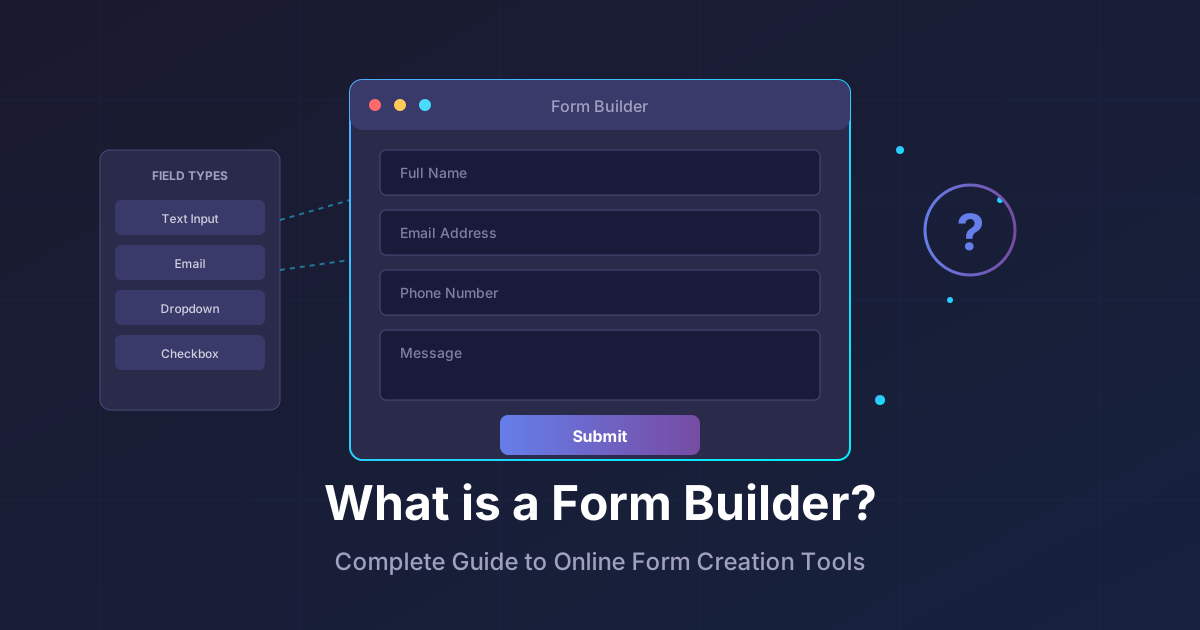
Step 1: Choose Your Form Builder
You have several options for creating contact forms:
Option A: Use a Dedicated Form Builder (Recommended)
Dedicated form builders like Pixelform offer the best combination of design flexibility, features, and ease of use. You get:
- Drag-and-drop form building
- Professional templates
- Built-in spam protection
- Analytics and insights
- Integrations with your favorite tools
Option B: WordPress Plugins
If you’re on WordPress, plugins like Contact Form 7 or WPForms work, but they often require technical knowledge and can slow down your site.
Option C: Code It Yourself
Building a form from scratch gives you complete control but requires development expertise and time to handle validation, spam protection, and email delivery.
Step 2: Plan Your Form Fields
The key to a high-converting contact form is asking for the right information — no more, no less.
Essential Fields
- Name: First name is often sufficient
- Email: Required for follow-up
- Message: A text area for their inquiry
Optional Fields (Use Sparingly)
- Phone number: Only if phone calls are part of your sales process
- Company name: Useful for B2B businesses
- Subject/Inquiry type: Helps route messages to the right team member
Pro tip: Every additional field reduces completion rates by approximately 10%. Only ask for what you truly need.
Step 3: Design for Conversions
A contact form’s design significantly impacts how many people complete it.
Layout Best Practices
- Single column layout: Easier to scan and complete
- Logical field order: Name → Email → Message
- Clear labels: Place labels above fields, not inside them
- Adequate spacing: Don’t crowd fields together
Button Optimization
Your submit button text matters more than you think:
- ❌ “Submit” (generic, cold)
- ✅ “Send Message” (clear action)
- ✅ “Get in Touch” (friendly)
- ✅ “Request a Call” (specific outcome)
Mobile Responsiveness
Over 60% of web traffic is mobile. Ensure your form:
- Uses full-width fields on mobile
- Has large enough touch targets (44px minimum)
- Doesn’t require horizontal scrolling
Step 4: Add Spam Protection
Nothing ruins a contact form like a flood of spam submissions. Here’s how to protect yourself:
Honeypot Fields
A hidden field that bots fill out but humans don’t see. If the field has a value, the submission is flagged as spam.
reCAPTCHA
Google’s reCAPTCHA is effective but can add friction for users. Use invisible reCAPTCHA when possible.
Form Validation
Server-side validation catches malicious submissions that bypass client-side checks.
Pixelform includes built-in spam protection so you don’t have to configure any of this yourself.
Step 5: Set Up Notifications
What happens after someone submits your form is just as important as the form itself.
Email Notifications
Configure instant email alerts so you never miss an inquiry. Include:
- All form field data
- Submission timestamp
- A direct reply link
Auto-Responders
Send an automatic confirmation to the person who submitted the form. This:
- Confirms their message was received
- Sets expectations for response time
- Provides alternative contact methods if urgent
Integration with Your CRM
For businesses with sales teams, routing form submissions to your CRM (like HubSpot or Salesforce) ensures proper follow-up.
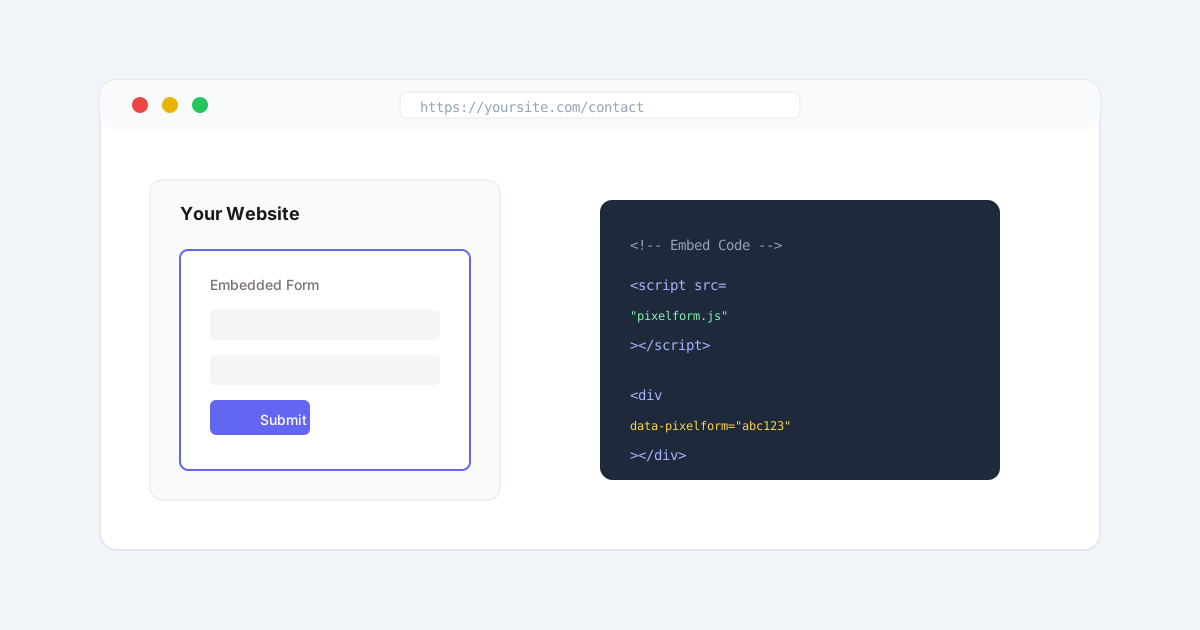
Step 6: Embed on Your Website
Once your form is ready, you need to add it to your website.
Embed Code Method
Most form builders provide an embed code you can paste into your website’s HTML:
<div data-pixelform="your-form-id"></div>
<script src="https://embed.usepixelform.com/v1/form.js"></script>
Direct Link Method
Alternatively, link to a hosted version of your form. This works well for:
- Email campaigns
- Social media bios
- QR codes on printed materials
WordPress Integration
Many form builders offer WordPress plugins for seamless embedding without touching code.
Common Mistakes to Avoid
Asking for Too Much Information
Long forms kill conversions. A 10-field form will get far fewer completions than a 3-field form.
No Confirmation Message
Always show a success message after submission. Users need to know their message went through.
Slow Form Loading
Heavy forms that take seconds to load frustrate users. Choose a form builder that prioritizes performance.
Ignoring Mobile Users
Test your form on actual mobile devices. What looks good on desktop might be unusable on a phone.
No Clear Call-to-Action
Your contact page should explain why someone should reach out and what they can expect.
Measuring Success
Once your form is live, track these metrics:
- Conversion rate: Form submissions ÷ Page visitors
- Completion rate: Submissions ÷ Form starts
- Response time: How quickly you reply to inquiries
- Lead quality: Are submissions turning into customers?
Ready to Create Your Contact Form?
Building a professional contact form doesn’t have to be complicated. With the right tools, you can have a beautiful, high-converting form live on your website in minutes.
Try Pixelform free and create your first contact form today. Your form can be live in under 5 minutes.