Landing Page Forms: The Complete Guide to Maximizing Conversions in 2025
Key Takeaways
- Reducing form fields from 11 to 4 can increase conversions by 120% according to conversion research data
- The average landing page converts at 6.6% while top performers achieve 11%+ through form optimization
- Multi-step forms boost conversions by up to 300% compared to single long forms
- Mobile-optimized forms see 67% higher completion rates when following touch-first design principles
- Forms placed above the fold receive 84% more views than those requiring scrolling
Your landing page form is the critical conversion point where interested visitors become qualified leads. Yet according to Unbounce’s analysis of 41,000 landing pages in Q4 2024, the average conversion rate sits at just 6.6%. The difference between average and exceptional performance often comes down to how well you’ve optimized your form.
In this comprehensive guide, you’ll learn proven strategies to transform your landing page forms into high-converting lead generation machines.
Why Landing Page Form Optimization Matters
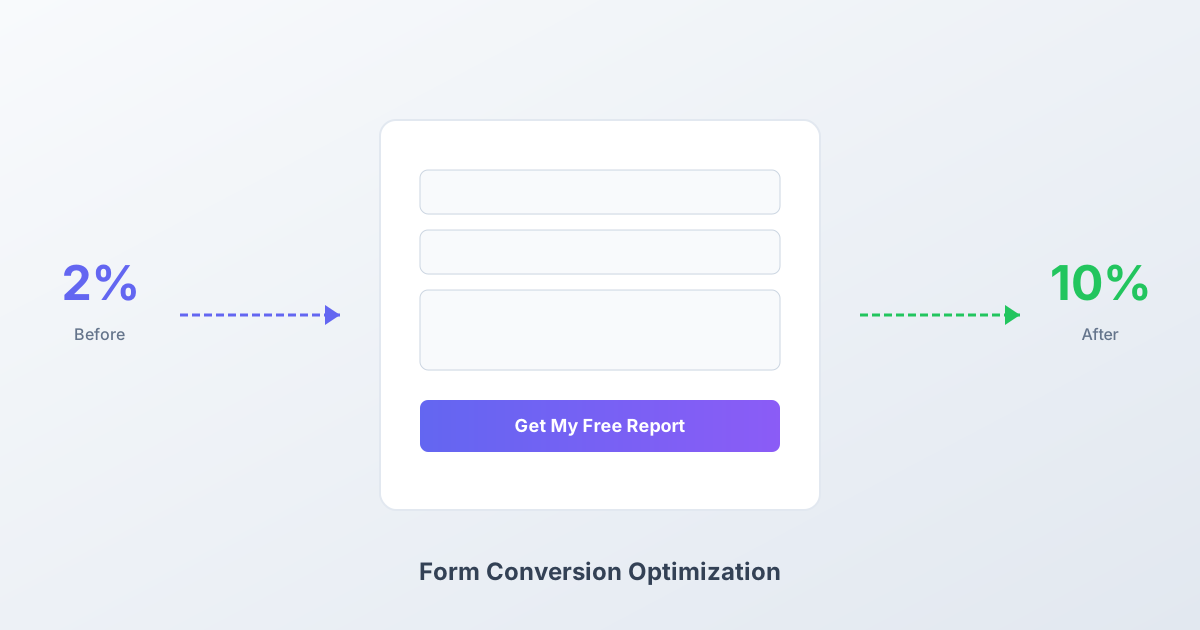
The math is simple but powerful: if your landing page receives 10,000 monthly visitors and converts at 5%, that’s 500 leads. Improve your conversion rate to 10% and you’ve doubled your results without spending an extra dollar on traffic.
According to First Page Sage’s 2025 industry benchmarks, form-focused landing pages can achieve conversion rates between 8% and 25% depending on industry and optimization level. The gap between average and top performers represents significant revenue potential.
Every element of your form impacts conversion rates:
- Number of fields
- Form placement
- CTA button text
- Mobile experience
- Trust signals
- Validation feedback
Let’s dive into each area with data-backed strategies you can implement immediately.
The Science of Form Fields: Less Really Is More
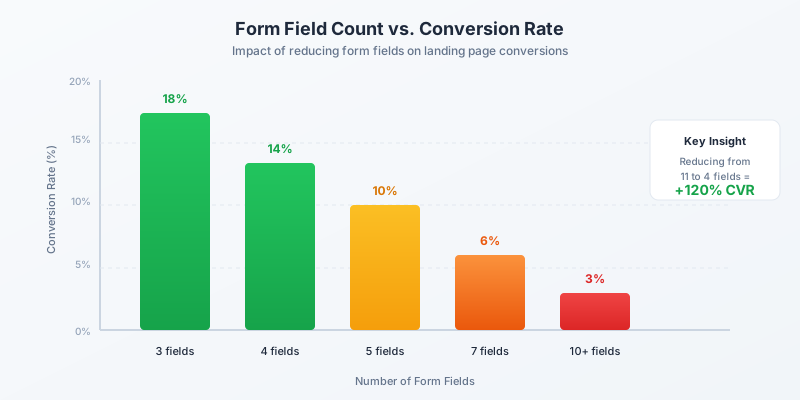
The relationship between form fields and conversion rates is one of the most researched areas in conversion optimization. The data consistently shows: fewer fields mean higher conversions.
What the Data Shows
According to HubSpot’s analysis of over 40,000 landing pages, the relationship between form fields and conversions follows a clear pattern:
| Number of Fields | Relative Conversion Rate |
|---|---|
| 3 fields | Baseline (highest) |
| 4 fields | -22% from baseline |
| 5 fields | -44% from baseline |
| 7 fields | -67% from baseline |
| 10+ fields | -83% from baseline |
One company documented a 120% increase in conversions simply by reducing their form from 11 fields to 4. Another study found that reducing fields from 4 to 3 boosted conversions by 50%.
Which Fields to Keep
For most lead generation purposes, you need only:
Essential fields:
- Email address (required for follow-up)
- First name (enables personalization)
- One qualifying question if needed
Fields you can often eliminate:
- Company name (derive from email domain)
- Phone number (unless phone outreach is your primary sales method)
- Job title (can be gathered later)
- “How did you hear about us?” (use UTM parameters instead)
- Address fields (unnecessary for digital follow-up)
The Optional Field Trap
If you’re marking fields as “optional,” you’re sending mixed signals. Either the information is valuable enough to require, or it’s not valuable enough to include. Remove optional fields entirely to reduce visual complexity and decision fatigue.
Strategic Form Placement: Above the Fold Wins
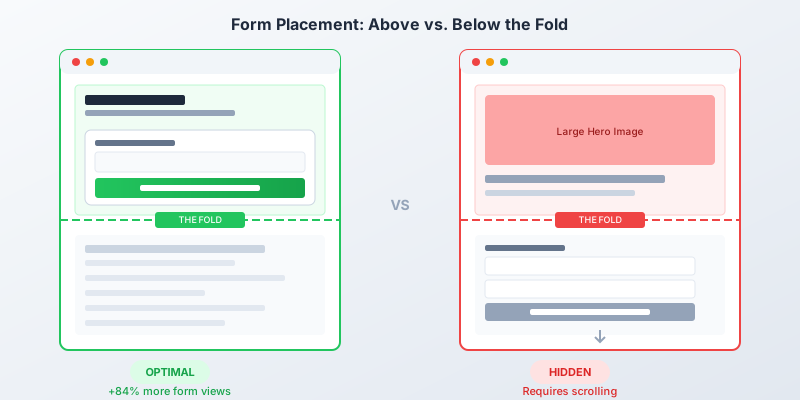
Where your form appears on the page significantly impacts how many visitors see and complete it. The concept of “above the fold” comes from newspaper publishing, referring to content visible without scrolling.
Why Above-the-Fold Placement Works
Research from Nielsen Norman Group confirms that users spend 57% of their viewing time above the fold. Forms placed in this prime real estate receive:
- 84% more views than forms below the fold
- Higher completion intent from engaged visitors
- Reduced friction by eliminating the scroll requirement
Best Placement Strategies by Page Type
Dedicated landing pages: Position the form directly adjacent to your value proposition in the hero section. The form should be visible without scrolling on desktop screens (typically within the first 600-800 pixels).
Long-form sales pages: Use a combination approach:
- Sticky form that follows the user
- Contextual form placement after key selling points
- Final form at the page conclusion
Blog posts and content pages:
- Inline forms after compelling content sections
- Exit-intent forms for leaving visitors
- Sidebar forms on desktop layouts
Mobile Placement Considerations
On mobile devices, “above the fold” becomes more nuanced due to varying screen sizes. Focus on:
- Clear CTA to scroll to the form
- Sticky buttons that remain visible
- Forms that appear early in the mobile scroll experience
CTA Button Optimization: Words That Convert
Your submit button is the final decision point. Generic text like “Submit” tells users nothing about what happens next and creates uncertainty that kills conversions.

High-Converting CTA Formulas
Value-focused:
- “Get My Free Report”
- “Download the Guide”
- “Access Your Results”
Action-oriented:
- “Start My Free Trial”
- “Create My Account”
- “Book My Demo”
Urgency-driven:
- “Get Instant Access”
- “Claim Your Spot”
- “Reserve My Seat Now”
The Psychology Behind Effective CTAs
The best-performing CTAs share common characteristics:
-
First-person language (“my” vs “your”): Using “Get My Report” creates psychological ownership before the action is taken, increasing commitment.
-
Specific outcomes: “Get My SEO Audit” is more compelling than “Submit” because it clearly states the value received.
-
Action verbs: Start with strong verbs (Get, Start, Download, Claim, Reserve) rather than passive words.
-
Benefit clarity: The CTA should answer “What do I get?” not just “What do I do?”
Button Design Best Practices
Beyond copy, visual design impacts click rates:
- Contrasting colors: Use a button color that stands out from the page palette (3:1 contrast ratio minimum)
- Adequate size: Minimum 44px height for touch targets, full-width on mobile
- Visual hierarchy: The CTA should be the most visually prominent element in the form
- Whitespace: Surround the button with breathing room
Mobile Form Optimization: Designing for Touch
With over 60% of web traffic now coming from mobile devices, your form must work flawlessly on smartphones and tablets. According to Google research, mobile users are 2x more likely to abandon poorly designed forms.

Mobile-First Form Design Principles
Single-column layout mandatory: Multi-column forms that work on desktop become frustrating on mobile. Stack all fields vertically for easy thumb navigation.
Touch-friendly targets:
- Minimum 44x44 pixel touch targets
- Adequate spacing between fields (at least 8px)
- Full-width buttons that span the screen
Appropriate keyboard types: Configure input types to trigger the right keyboard:
<input type="email" inputmode="email" />
<input type="tel" inputmode="tel" />
<input type="number" inputmode="numeric" />
Enable autofill: Properly coded forms leverage browser autofill to reduce typing:
<input type="text" autocomplete="given-name" />
<input type="email" autocomplete="email" />
<input type="tel" autocomplete="tel" />
Mobile Testing Checklist
Before launching, verify:
- Single-column layout on all screen sizes
- No horizontal scrolling required
- Buttons are full-width and easily tappable
- Form doesn’t get hidden behind the keyboard
- Labels remain visible when fields are focused
- Error messages are readable on small screens
- Test on actual devices, not just browser simulators
Trust Signals: Reducing Form Anxiety
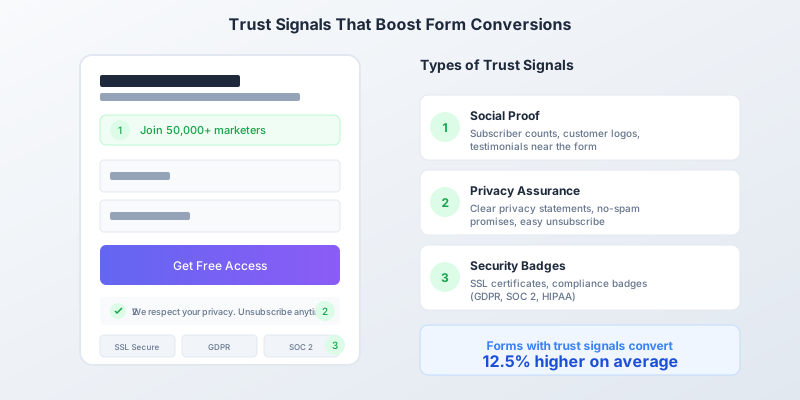
Every form submission involves a micro-commitment of personal information. Trust signals reduce the perceived risk and answer unspoken objections.
Types of Effective Trust Signals
Social proof:
- Subscriber/customer counts: “Join 50,000+ marketers”
- Company logos of recognizable clients
- Testimonials positioned near the form
- Real-time activity notifications
Privacy assurance:
- Clear, visible privacy policy link
- Specific no-spam commitments: “We’ll only email you about your request”
- Easy unsubscribe messaging
- Data handling transparency
Security indicators:
- SSL certificates and HTTPS badges
- Compliance certifications (GDPR, SOC 2, HIPAA if applicable)
- Payment security badges for transactional forms
Placement of Trust Signals
Position trust elements where they address objections at decision points:
- Above the form: Social proof (subscriber counts, logos)
- Below fields, above CTA: Privacy statements
- Below CTA: Security badges and certifications
- Adjacent to email field: No-spam promise
Research indicates forms with trust signals convert 12.5% higher on average than those without.
Multi-Step Forms: Breaking the Commitment Barrier
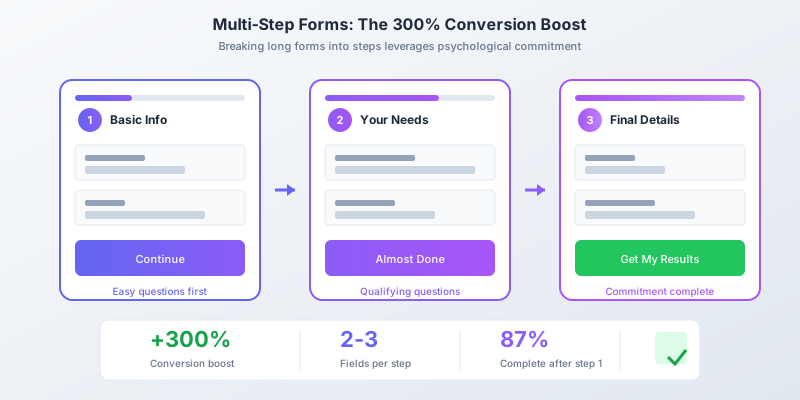
When you need more than 3-4 fields, multi-step forms dramatically outperform single long forms. According to HubSpot research, multi-step forms can boost conversions by up to 300%.
Why Multi-Step Forms Work
Psychological commitment: Once users complete the first step, they’ve invested effort and are more likely to finish. This is the foot-in-the-door principle in action.
Reduced perceived effort: A form with 9 fields looks intimidating. Three steps with 3 fields each feels manageable, even though the total is the same.
Progress motivation: Visual progress indicators create a completion drive. Users want to finish what they’ve started.
Optimal Multi-Step Structure
Step 1: Low-friction basics (2 fields)
- Name
Start with the easiest questions. Once these are submitted, you have a lead even if they abandon later steps.
Step 2: Qualifying information (2-3 fields)
- Company/Role
- Primary need or challenge
- Budget range (if applicable)
These questions help segment and qualify the lead for sales follow-up.
Step 3: Final details (2-3 fields)
- Specific preferences
- Timeline
- Additional context
By this point, commitment is high and completion is likely.
Multi-Step Design Best Practices
- Show progress clearly: Use step indicators or progress bars
- Allow back navigation: Don’t trap users on later steps
- Save progress automatically: Prevent data loss if they navigate away
- Keep each step focused: One logical topic per step
- Celebrate completion: Use engaging thank-you pages
Real-Time Validation: Preventing Frustration
Form validation that waits until submission to show errors creates frustration and abandonment. Inline validation provides immediate feedback, improving completion rates by 22% according to UX research.
Validation Best Practices
Validate on blur, not keystroke: Check field validity when users move to the next field, not while they’re typing. Keystroke validation creates anxiety as users see errors before they’ve finished entering data.
Show success states: Green checkmarks or positive indicators for valid inputs reinforce progress and build confidence.
Provide specific error messages: Instead of “Invalid input,” tell users exactly what’s wrong: “Please enter a valid email address (example@domain.com)”
Don’t clear the form on errors: Nothing is more frustrating than losing all entered data due to a single validation error. Preserve everything and highlight only the problem fields.
Field-Specific Validation
Email fields:
- Check format in real-time
- Consider integration with email verification services for high-value forms
Phone numbers:
- Accept multiple formats
- Auto-format as users type
- Detect country code when possible
Required fields:
- Mark clearly with asterisks
- Validate only after the user has interacted with the field
A/B Testing Your Forms: Data Over Opinions
Don’t guess what works for your specific audience. Test systematically and let data guide decisions.
High-Impact Elements to Test
- Number of fields (biggest potential impact)
- CTA button text and color
- Form headline
- Single-step vs multi-step
- Field order
- Form placement
Testing Methodology
Change one element at a time: If you change multiple elements simultaneously, you won’t know which change drove the results.
Run until statistical significance: Don’t call tests early. Use a sample size calculator to determine how many conversions you need for valid results.
Test on real traffic: Internal testing doesn’t reflect actual user behavior. Only live traffic produces reliable data.
Document everything: Keep a testing log with hypotheses, results, and learnings for future reference.
Measuring Form Performance
Track these metrics to understand your form’s effectiveness:
Primary metrics:
- Conversion rate: Form submissions / Page visitors
- Completion rate: Submissions / Users who started the form
- Field drop-off: Which specific fields cause abandonment
Secondary metrics:
- Time to complete: Average duration from first field to submission
- Error rate: How often validation errors occur
- Mobile vs desktop conversion: Performance by device type
Implementation Checklist
Use this checklist to audit and optimize your landing page forms:
Form fields:
- Every field is absolutely necessary
- No optional fields (remove or make required)
- Labels positioned above fields
- Single-column layout
Placement and visibility:
- Form visible above the fold on desktop
- Clear path to form on mobile
- No competing CTAs or distractions
CTA optimization:
- Value-focused button text (not “Submit”)
- Contrasting button color
- Adequate button size (44px+ height)
Mobile experience:
- Single-column on all devices
- Correct input types for keyboards
- Full-width buttons
- Autofill enabled
Trust and validation:
- Trust signals near the form
- Privacy statement visible
- Inline validation implemented
- Helpful error messages
FAQ
What is a good conversion rate for landing page forms?
The average landing page form converts at approximately 6.6% according to Q4 2024 data from Unbounce’s analysis of 41,000 pages. Top performers achieve 10-20% conversion rates. However, rates vary significantly by industry, traffic source, and offer type. Focus on improving your baseline rather than hitting arbitrary benchmarks.
How many form fields should I include for maximum conversions?
Research consistently shows that 3-4 fields is optimal for most lead generation forms. Each additional field beyond four reduces conversions by approximately 10-20%. Only ask for information you immediately need; you can gather additional details during follow-up.
Should I use a single-step or multi-step form?
Multi-step forms outperform single-step forms when you need more than 4-5 fields, showing up to 300% higher conversion rates. For simple forms with 3 fields or fewer, single-step is typically better. Multi-step works by reducing perceived effort and leveraging psychological commitment.
Where should I place my form on the landing page?
Position your form above the fold (visible without scrolling) on desktop devices. Forms in this position receive 84% more views. On mobile, ensure the form is easy to reach with a clear CTA if it requires scrolling. For longer pages, consider sticky forms or multiple form placements.
What CTA button text converts best?
Value-focused, specific CTA text significantly outperforms generic labels. “Get My Free Report” consistently beats “Submit” by wide margins. Use first-person language (“my” instead of “your”), action verbs, and clearly state what the user receives.
How do I optimize forms for mobile users?
Use single-column layouts exclusively, ensure touch targets are at least 44x44 pixels, implement appropriate keyboard types for each field, enable browser autofill, and test on actual mobile devices. Mobile-optimized forms see 67% higher completion rates.
What trust signals should I include near my form?
Effective trust signals include social proof (customer counts, logos), privacy statements (“We respect your inbox”), and security badges (SSL, compliance certifications). Position these strategically: social proof above the form, privacy statements near the CTA, and security badges below the submit button.
Start Optimizing Your Landing Page Forms
The strategies in this guide are proven to increase conversions, but implementation matters. Start with the highest-impact changes: reduce form fields, improve your CTA, and ensure mobile optimization. Then iterate based on your specific data.
Pixelform makes it easy to create conversion-optimized landing page forms:
- Drag-and-drop builder with best practices built in
- Multi-step form support with progress indicators
- Mobile-responsive by default
- Real-time analytics to track performance
- A/B testing capabilities
Create your first optimized form and start converting more visitors into leads.
Sources: Unbounce Conversion Benchmark Report, HubSpot Landing Page Research, First Page Sage Industry Benchmarks, Nielsen Norman Group UX Research